A real customer rarely emails you a clean line list — they send an Excel or PDF. Instead of keying every line, PCWB can
extract lines from a file and create one or many RFQs in a single step, then Verify each
line's IMPA / reference code against the catalogue to bind it to a real MSS item. This whole flow is driven live below.
live drive
Round-trip demo. To get a realistic customer file we first export an existing RFQ's lines to Excel,
then import that exact file back as a brand-new RFQ on the CORAL SEA port call — proving both the export and the
import extractor on genuine data.
2b.1
Export
RFQ lines → Excel (AFTER_CONFIRM)
2b.2
Import from file
upload → extract lines
2b.3
Review
edit RFQ No / pick lines → create
2b.4
Verify IMPA
bind lines to MSS catalogue
2b.1 Export an RFQ to Excel
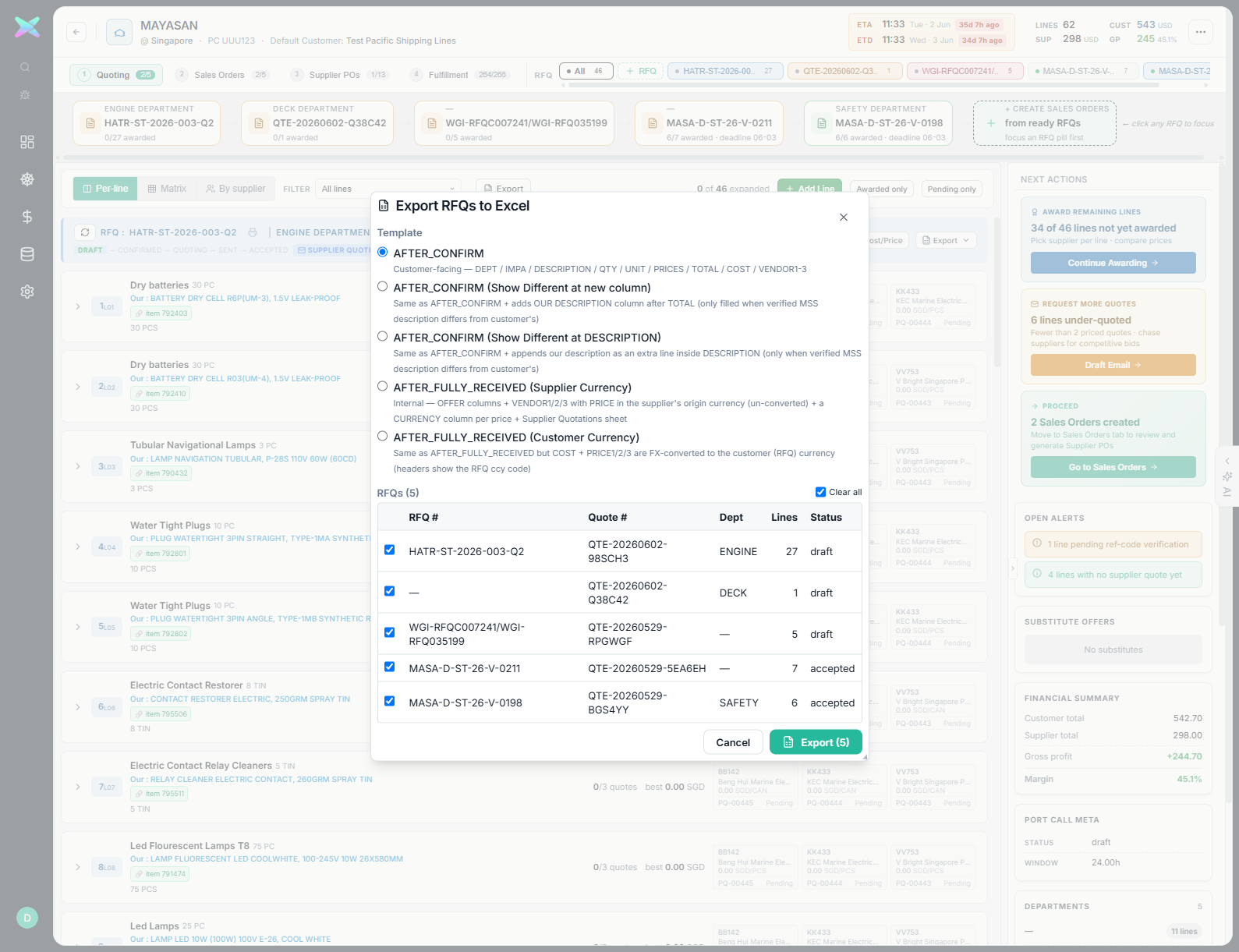
On the Quoting stage toolbar, Export opens Export RFQs to Excel. Tick the RFQ(s) and pick a
template. AFTER_CONFIRM is the customer-facing layout — one row per line with
DEPT / IMPA / DESCRIPTION / QTY / UNIT / PRICES / TOTAL / COST / VENDOR1-3.
The export dialog on MAYASAN — five templates (AFTER_CONFIRM, two "show different" variants, and two AFTER_FULLY_RECEIVED currency modes). We export MASA-D-ST-26-V-0211 (7 lines) as AFTER_CONFIRM, producing sales_quote_QTE-20260529-5EA6EH_AFTER_CONFIRM.xlsx.
What the file contains. A header block (VESSEL / PORT / ETA / RFQ) then a table: each line's IMPA code,
description, quantity and unit — exactly the fields the importer needs to re-create an RFQ.
2b.2 Create RFQ from file — extract
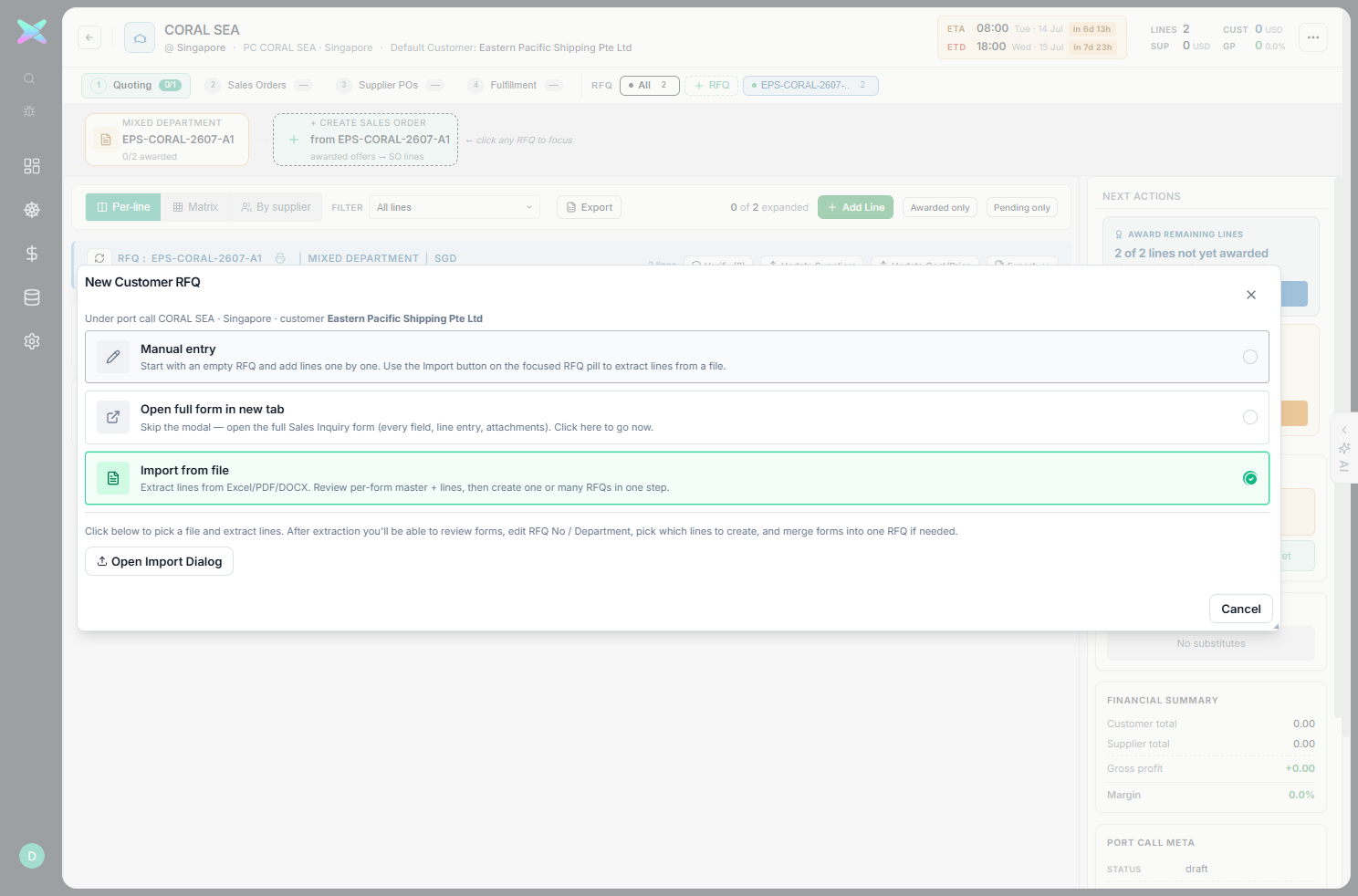
On CORAL SEA, + RFQ → choose Import from file. The mode card explains it will extract
lines and let you review before creating; click Open Import Dialog.
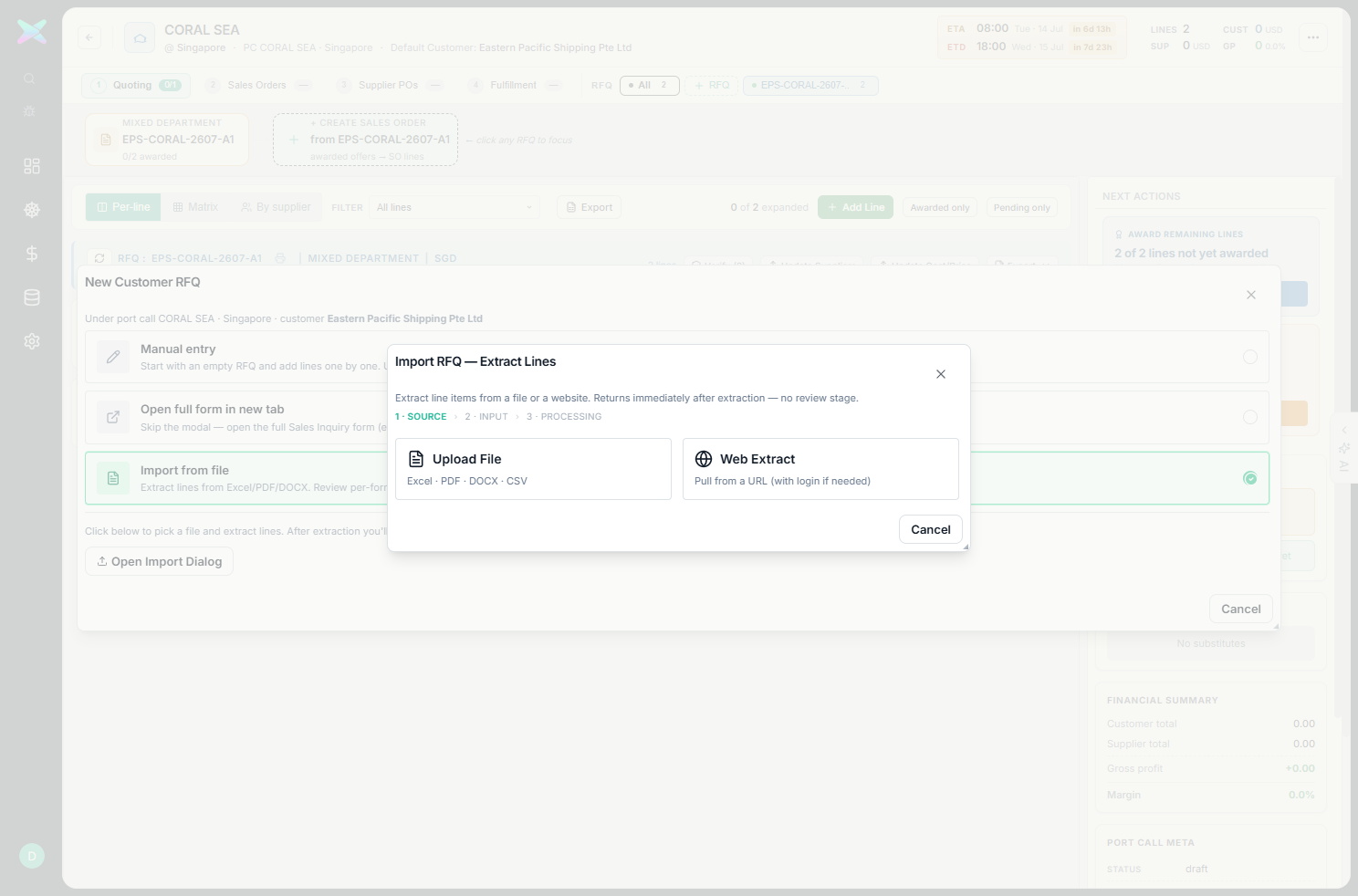
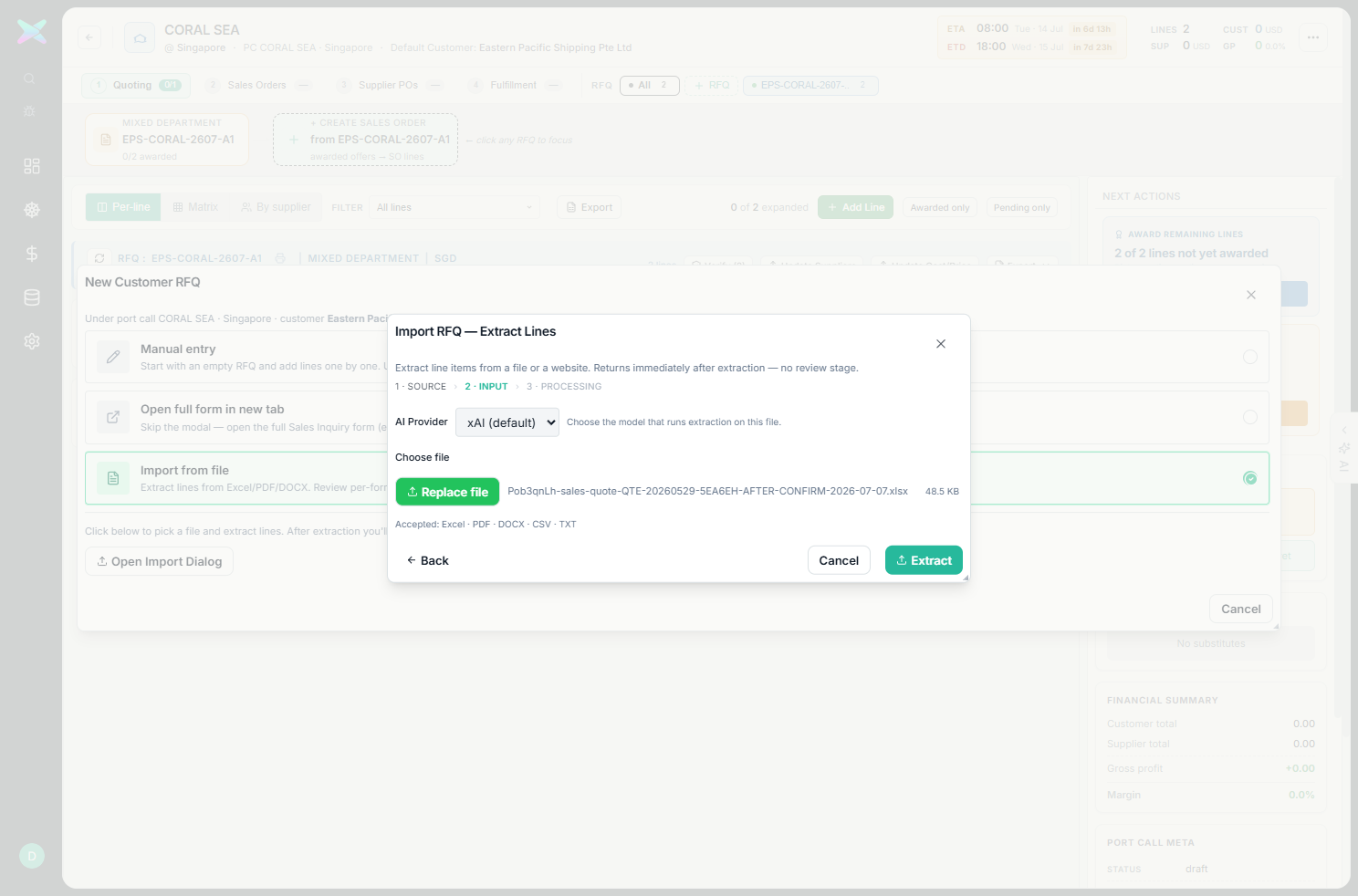
The New Customer RFQ modal with Import from file selected — "Extract lines from Excel/PDF/DOCX. Review per-form master + lines, then create one or many RFQs in one step."Import RFQ — Extract Lines, a 3-step wizard (SOURCE › INPUT › PROCESSING). Choose Upload File (Excel · PDF · DOCX · CSV) or Web Extract (pull from a URL).The exported xlsx attached — click Extract. Extraction is model-driven, so it reads arbitrary layouts (a real customer's spreadsheet, not just our export).
2b.3 Review & create
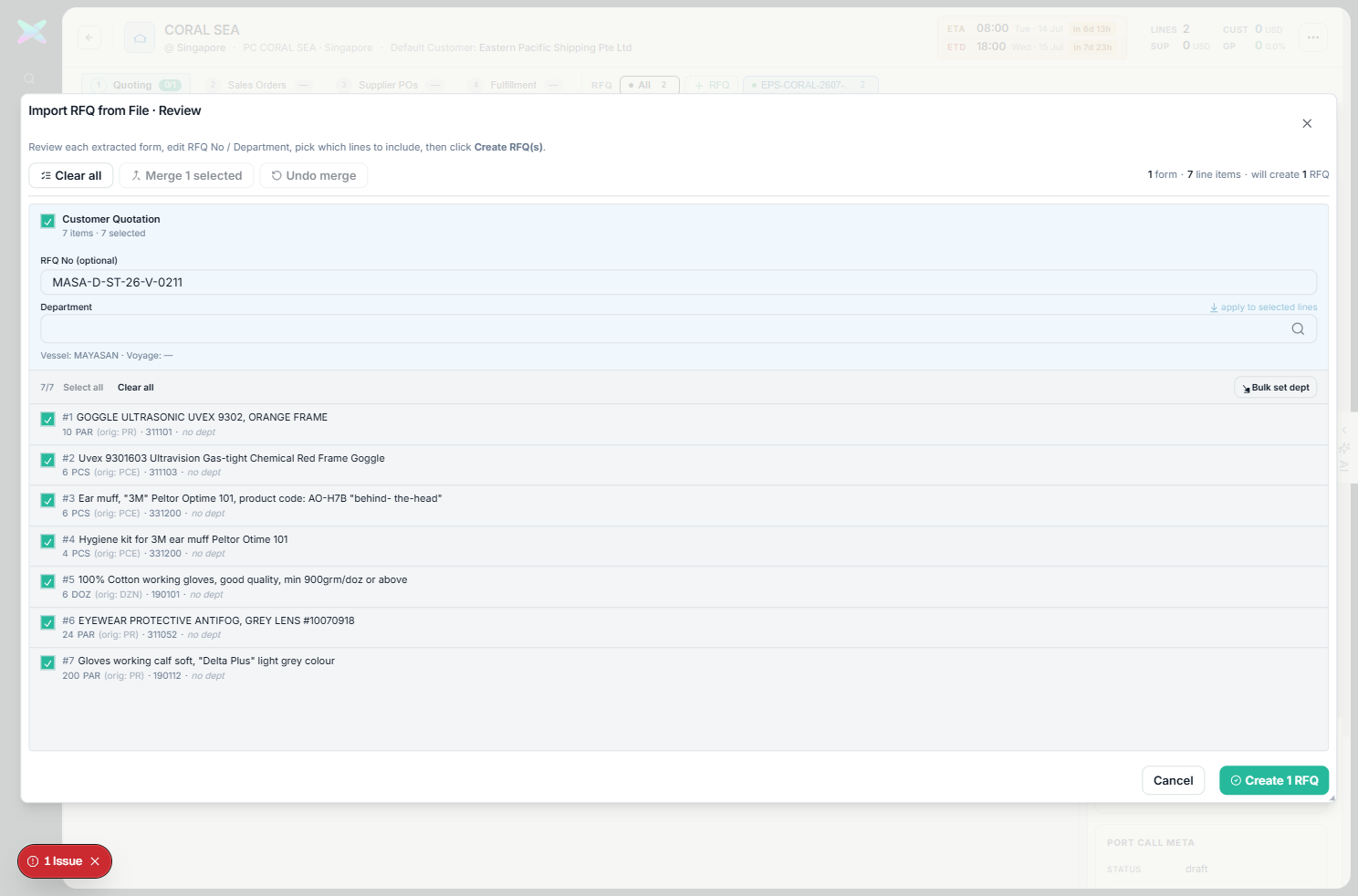
Extraction returns a Review modal: one card per detected form, each with an editable
RFQ No / Department and a checkbox list of extracted lines. You choose which lines to
include, can bulk-set the department, and merge multiple forms into one RFQ. Then Create
RFQ(s).
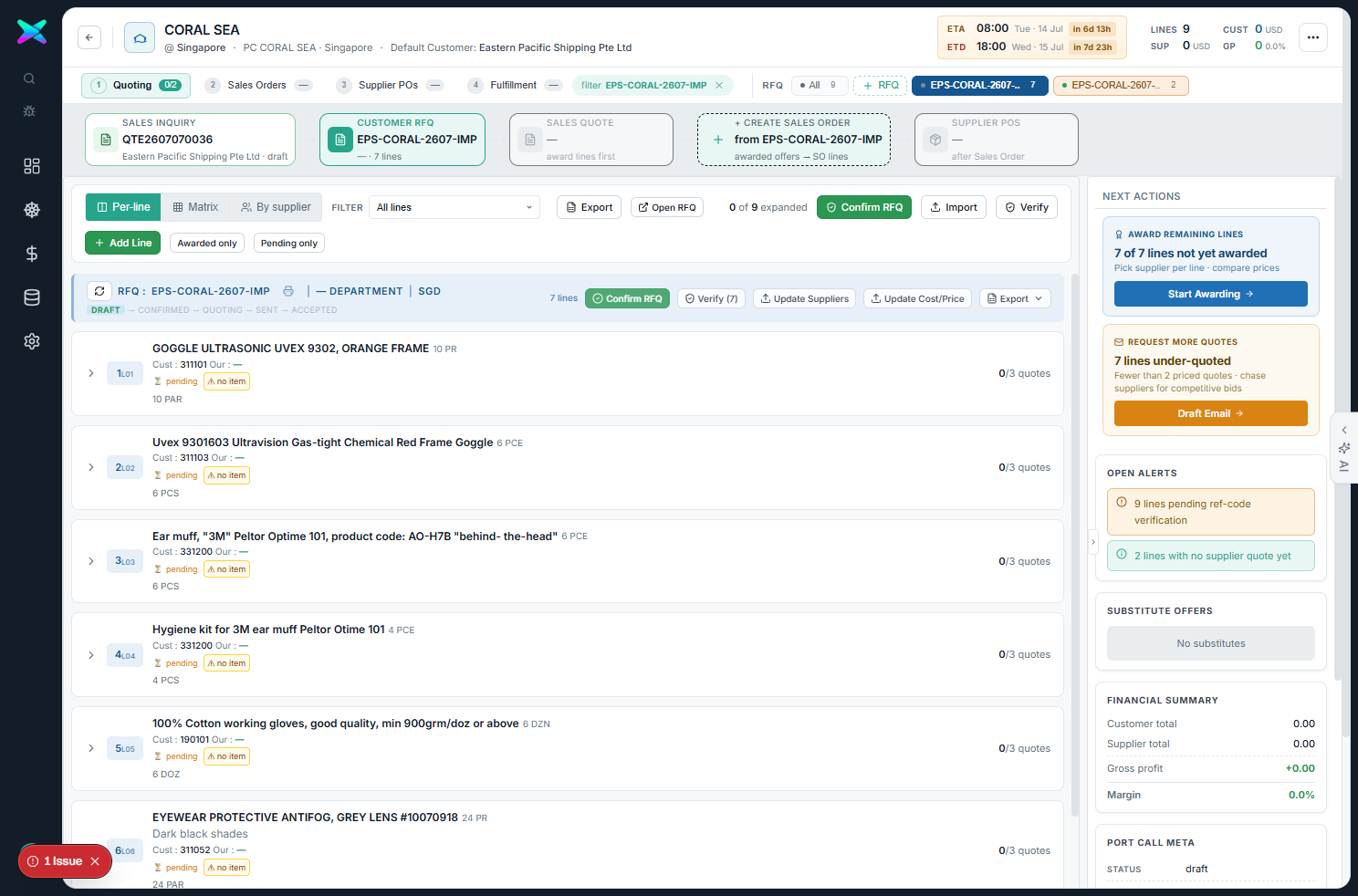
All 7 lines extracted with their IMPA code, quantity and original UOM preserved (#1 GOGGLE UVEX 9302 · 10 PAR · 311101, #3 3M ear muff · 6 PCS · 331200, #5 cotton gloves · 6 DOZ · 190101 …). Header reads "1 form · 7 line items · will create 1 RFQ". We rename the RFQ to EPS-CORAL-2607-IMP and click Create 1 RFQ.The imported RFQ lands on the board (CORAL SEA now has two RFQ pills). Each line shows the customer's code Cust : 311101 · Our : — with pending and ⚠ no item chips — extracted but not yet bound to a catalogue item. The right rail flags "9 lines pending ref-code verification".
2b.4 Verify IMPA — bind to the catalogue
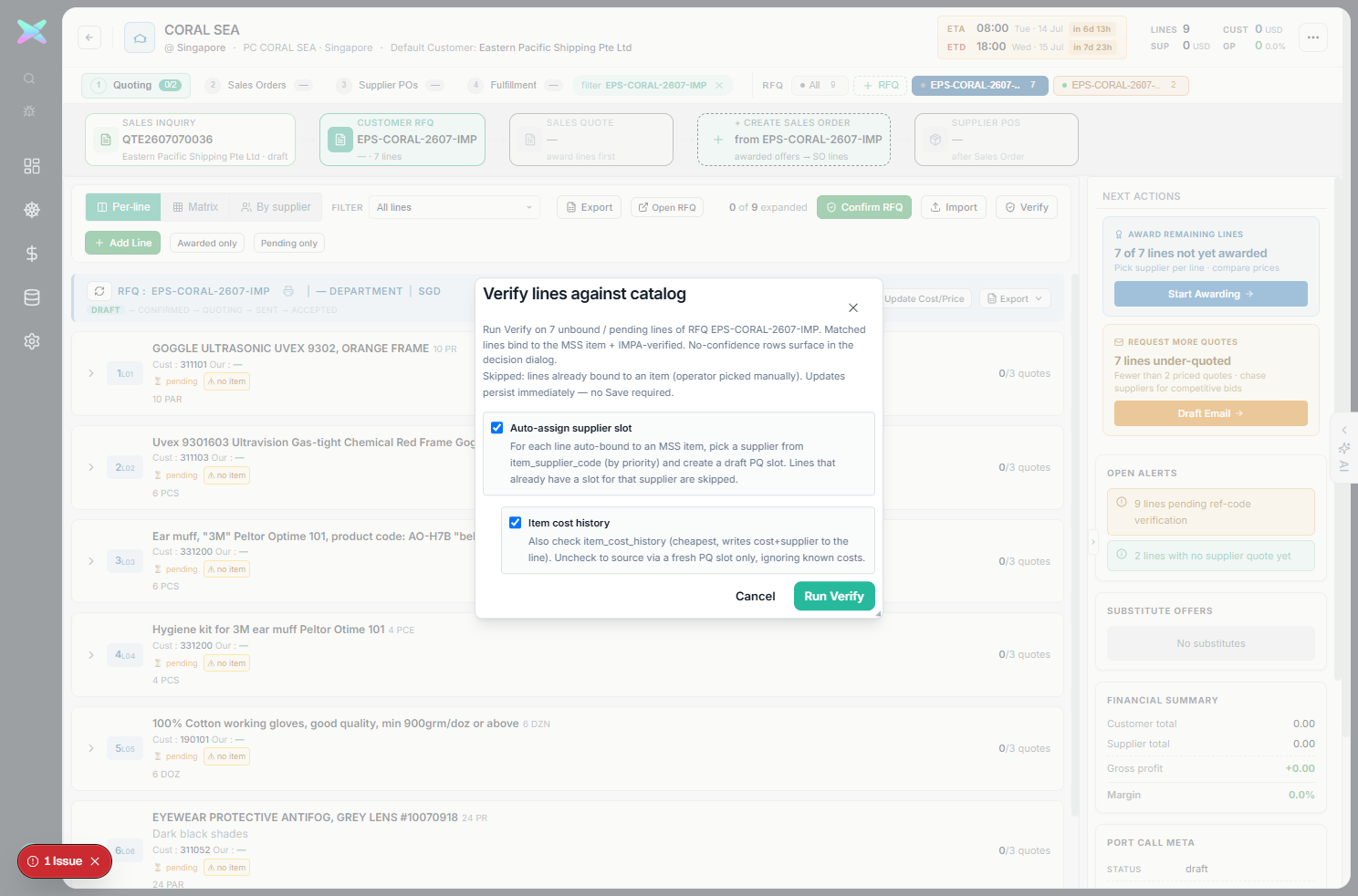
The RFQ header's Verify (7) button opens Verify lines against catalog. Running it matches each
unbound line by its IMPA / reference code to the MSS item master and binds it; low-confidence rows surface in a decision
dialog for a manual pick.
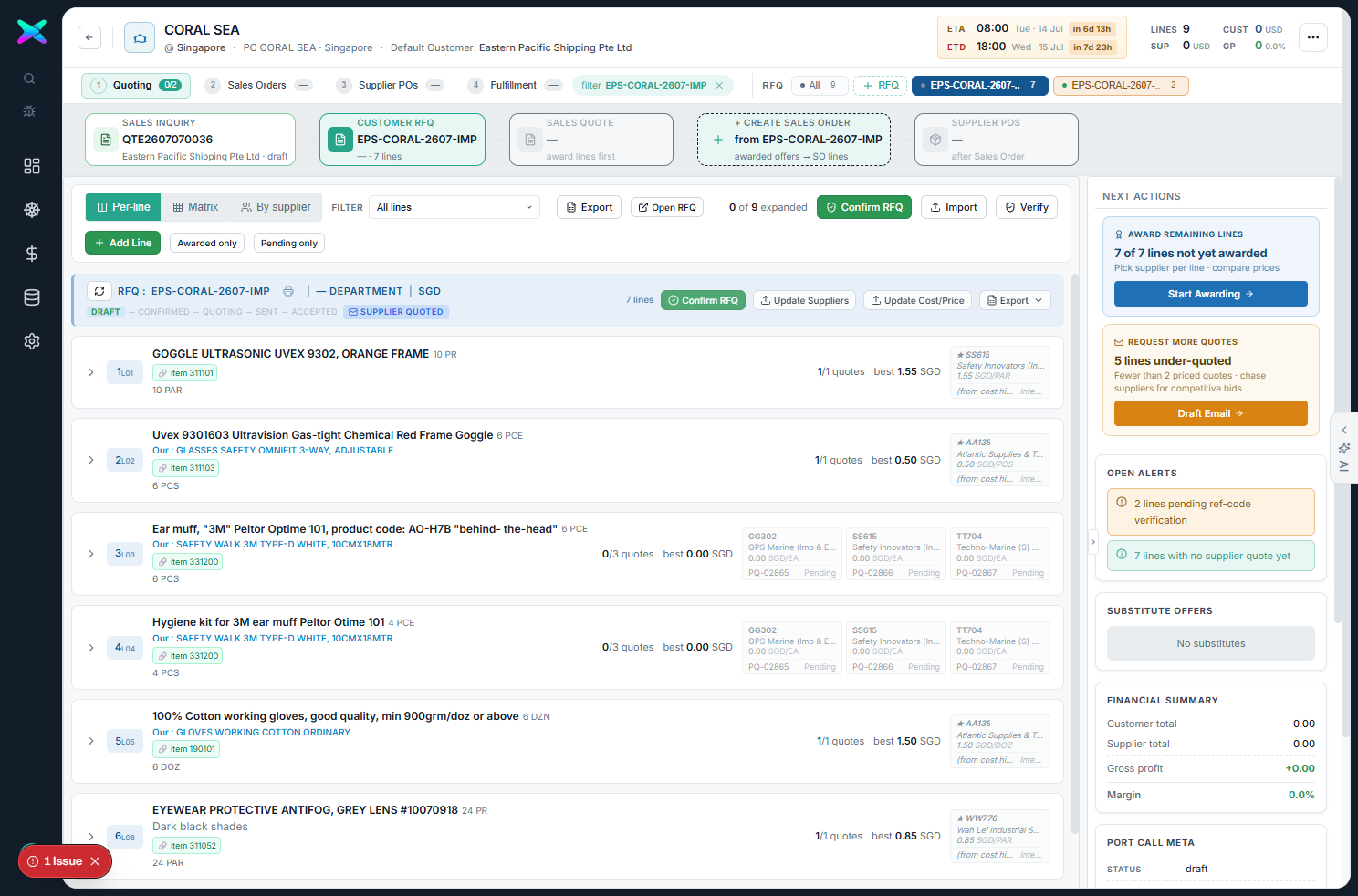
"Run Verify on 7 unbound / pending lines of RFQ EPS-CORAL-2607-IMP. Matched lines bind to the MSS item + IMPA-verified. No-confidence rows surface in the decision dialog. Skipped: lines already bound to an item."After Verify, every imported line is bound: the ⚠ no item chip becomes 🔗 item 311101 and an Our : line shows the catalogue's own description where it differs from the customer's text (e.g. customer "Uvex 9301603…" → Our : GLASSES SAFETY OMNIFIT 3-WAY). Verify also surfaces internal cost-history offers on lines that have them (★ Safety Innovators 1.55 SGD/PAR). The pending-verification alert drops from 9 to 2.
Why binding matters. The bound MSS item is what carries the line downstream — its catalogue description,
base UOM and cost history feed supplier sourcing, the sales quote, and every fulfillment / purchase document. Verify is
the bridge from "what the customer wrote" to "what we actually quote and buy".
Per-line manual verify. A single line can also be verified on its own via the line's ref-code popover
("Verify customer reference code" → enter a verified code), for the cases the bulk matcher can't resolve automatically.