2 · Quoting & Award
Stage 1 is where a customer RFQ is captured, its lines are sourced from suppliers, and the best supplier offer is awarded per line — which sets each line's cost and, via markup, its sell price. We create and populate an RFQ live on CORAL SEA, then tour a fully-sourced board on MAYASAN to show award.
2.1 Create a customer RFQ live
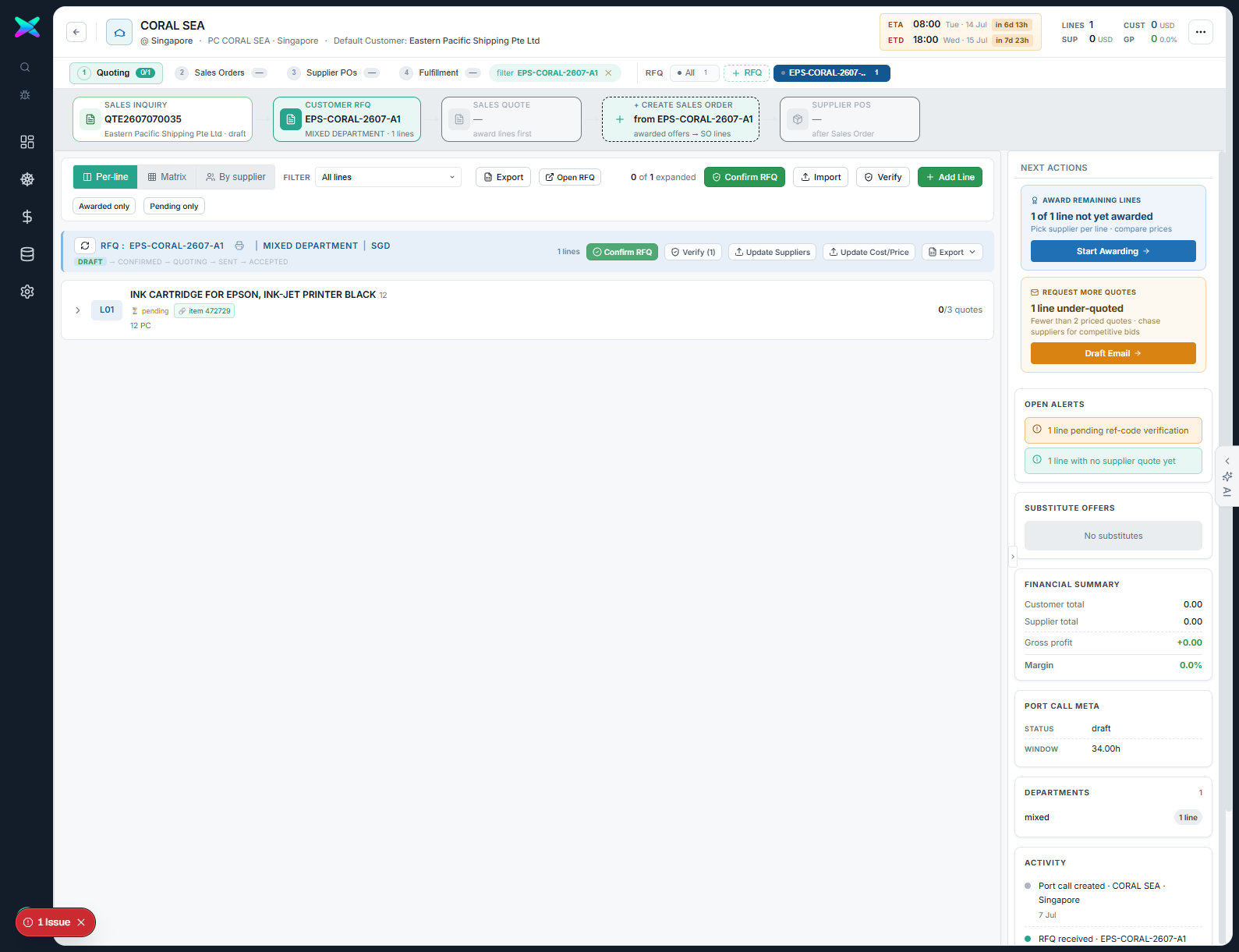
Click + RFQ (next to the RFQ selector). The New Customer RFQ modal offers three modes: Manual entry (empty RFQ, add lines by hand), Open full form in new tab, or Import from file (extract lines from Excel/PDF/DOCX). We use Manual entry and set the customer's RFQ reference.
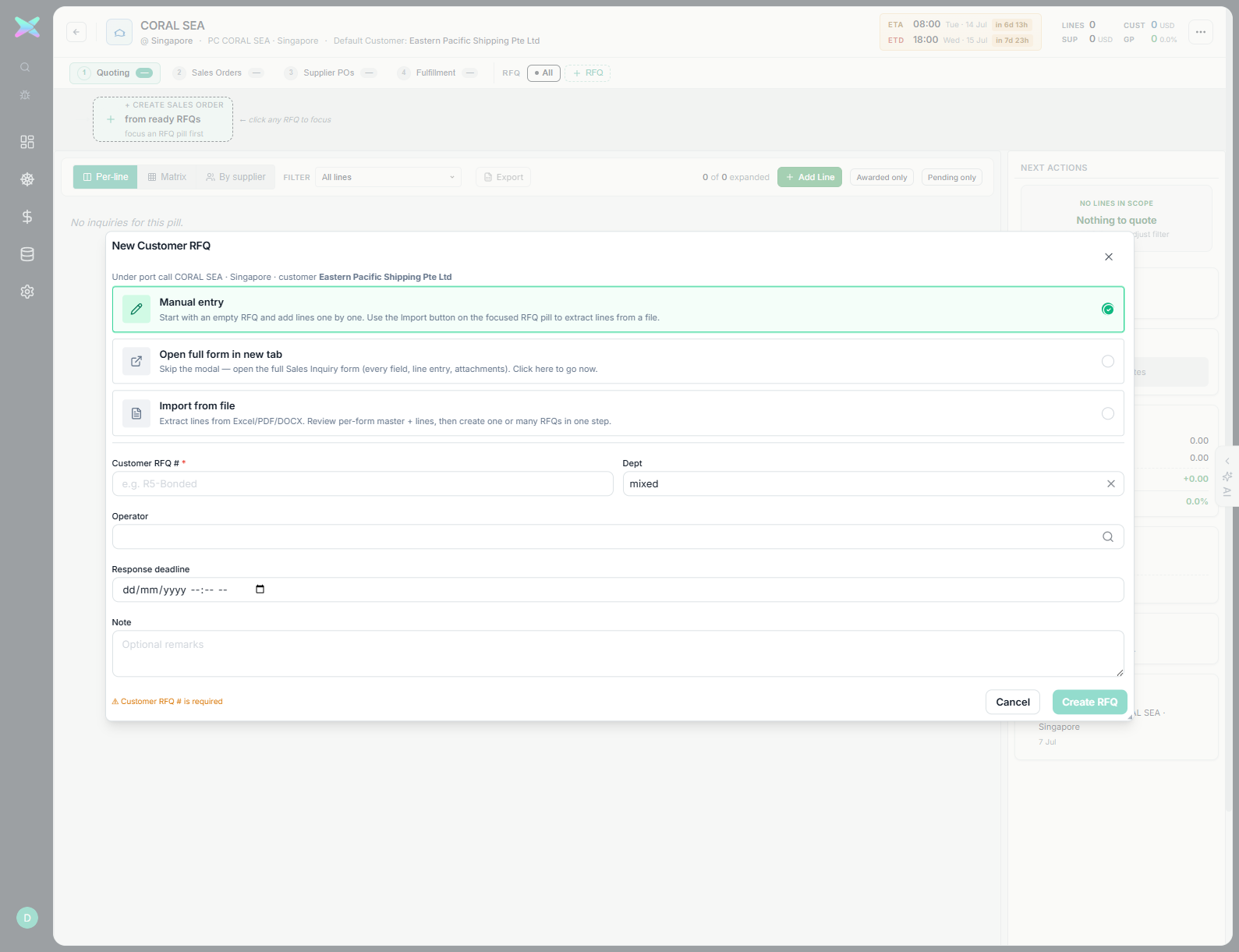
EPS-CORAL-2607-A1 → Create RFQ.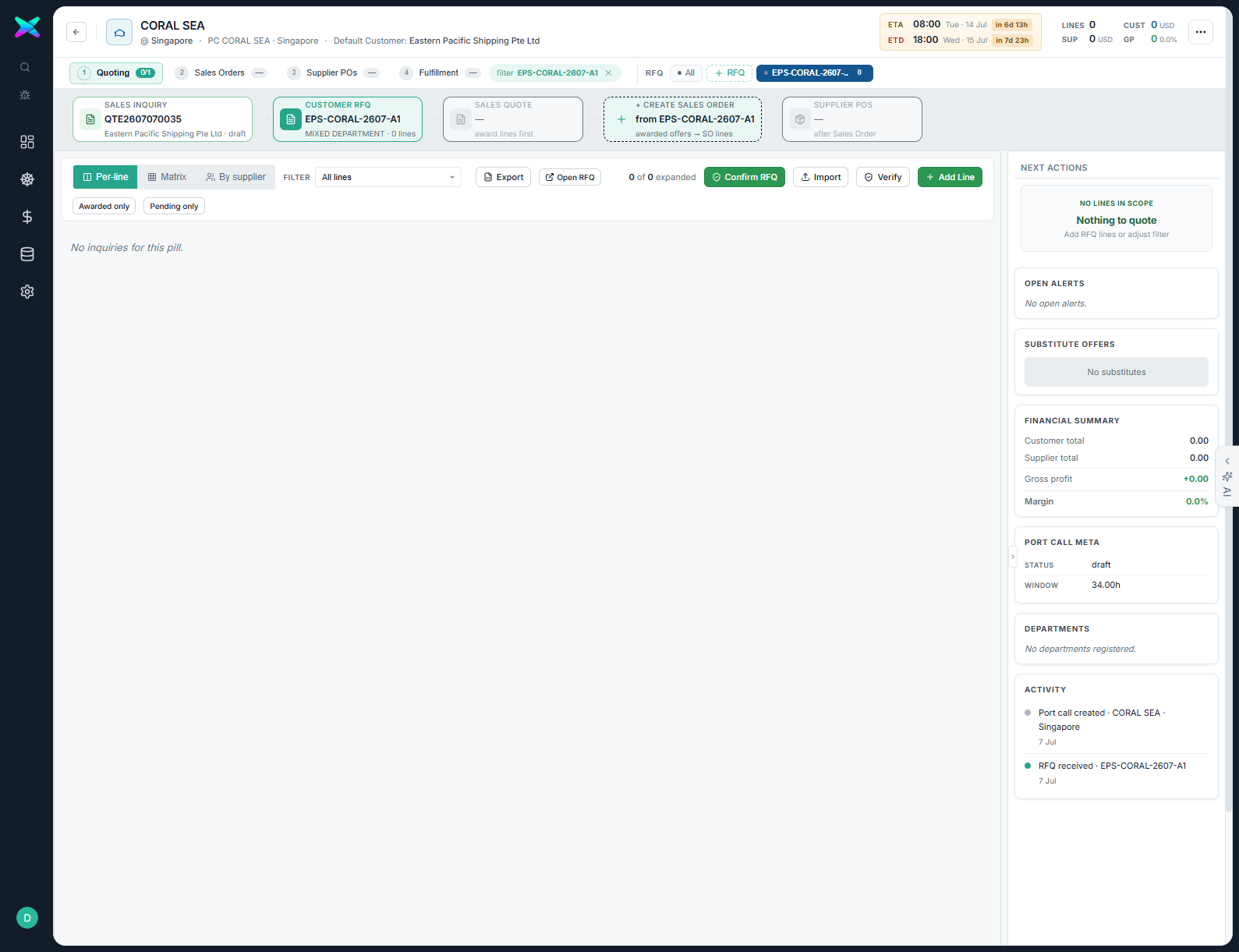
QTE2607070035 → Customer RFQ EPS-CORAL-2607-A1 (0 lines) → Sales Quote → Create Sales Order → Supplier POs. Activity logs "RFQ received".2.2 Add catalogue lines live
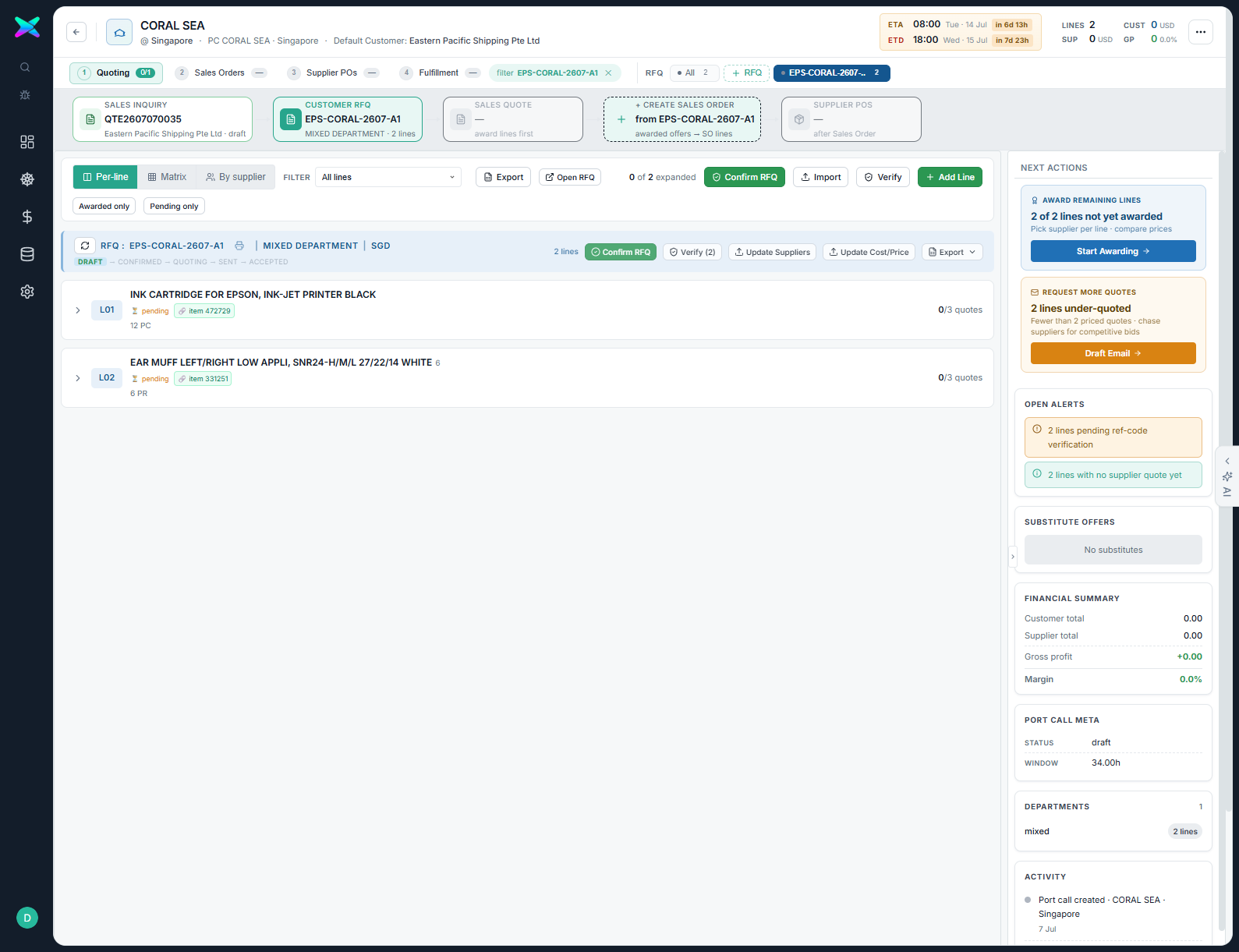
Click Add Line. The Add Line to Customer RFQ modal lets you pick From Catalog (the MSS item master, searchable by code / name / IMPA) or key a Manual Entry. Choosing a catalogue item auto-fills its UOM; you just set the order quantity.
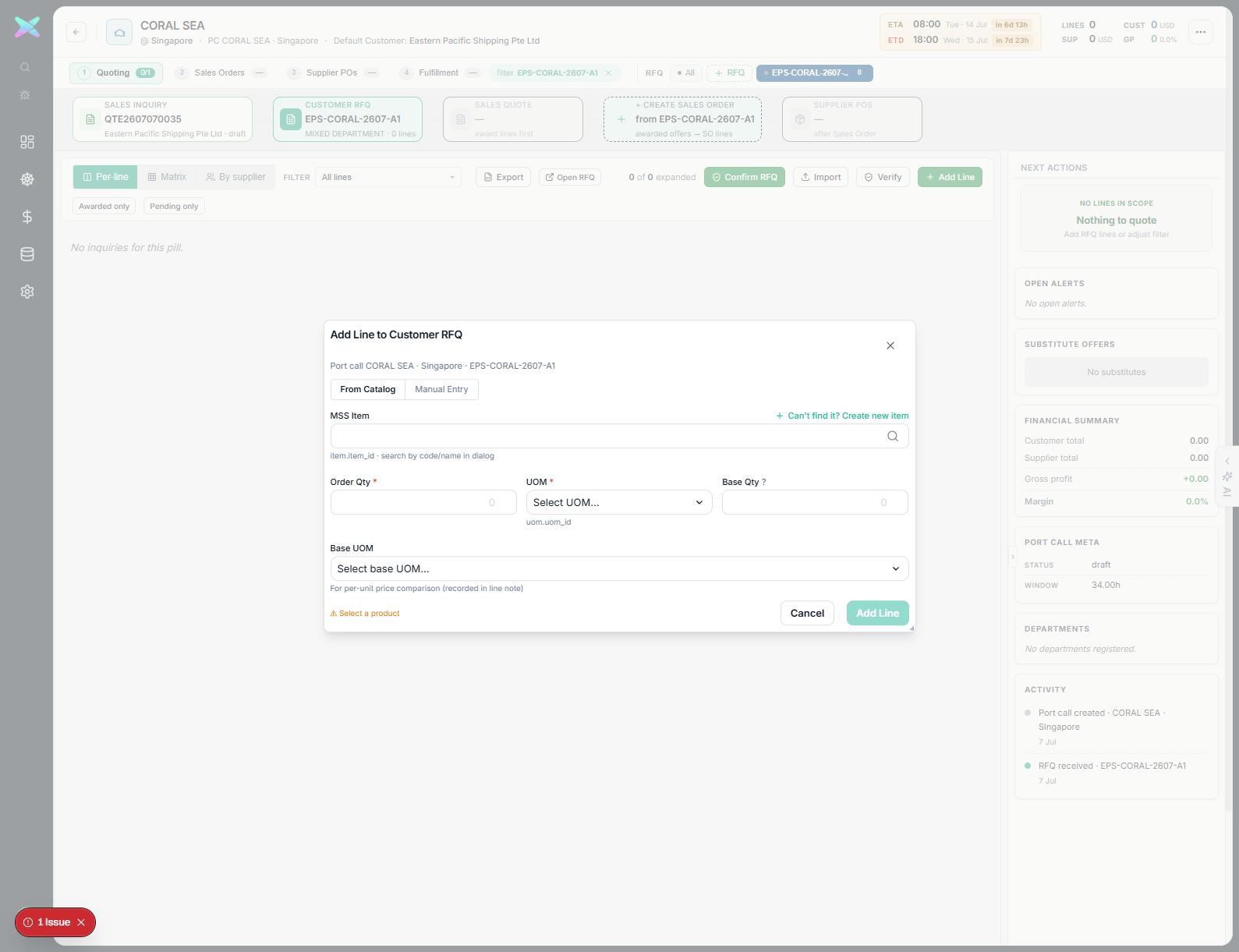
Searching the catalogue returns real IMPA-coded items. We add two lines:
| Line | IMPA | Item | Qty | UOM |
|---|---|---|---|---|
| L01 | 472729 | INK CARTRIDGE FOR EPSON, INK-JET PRINTER BLACK | 12 | PC |
| L02 | 331251 | EAR MUFF LEFT/RIGHT LOW APPLI, SNR24 (3M Peltor Optime 101) | 6 | PR |
2.3 Confirm the RFQ live
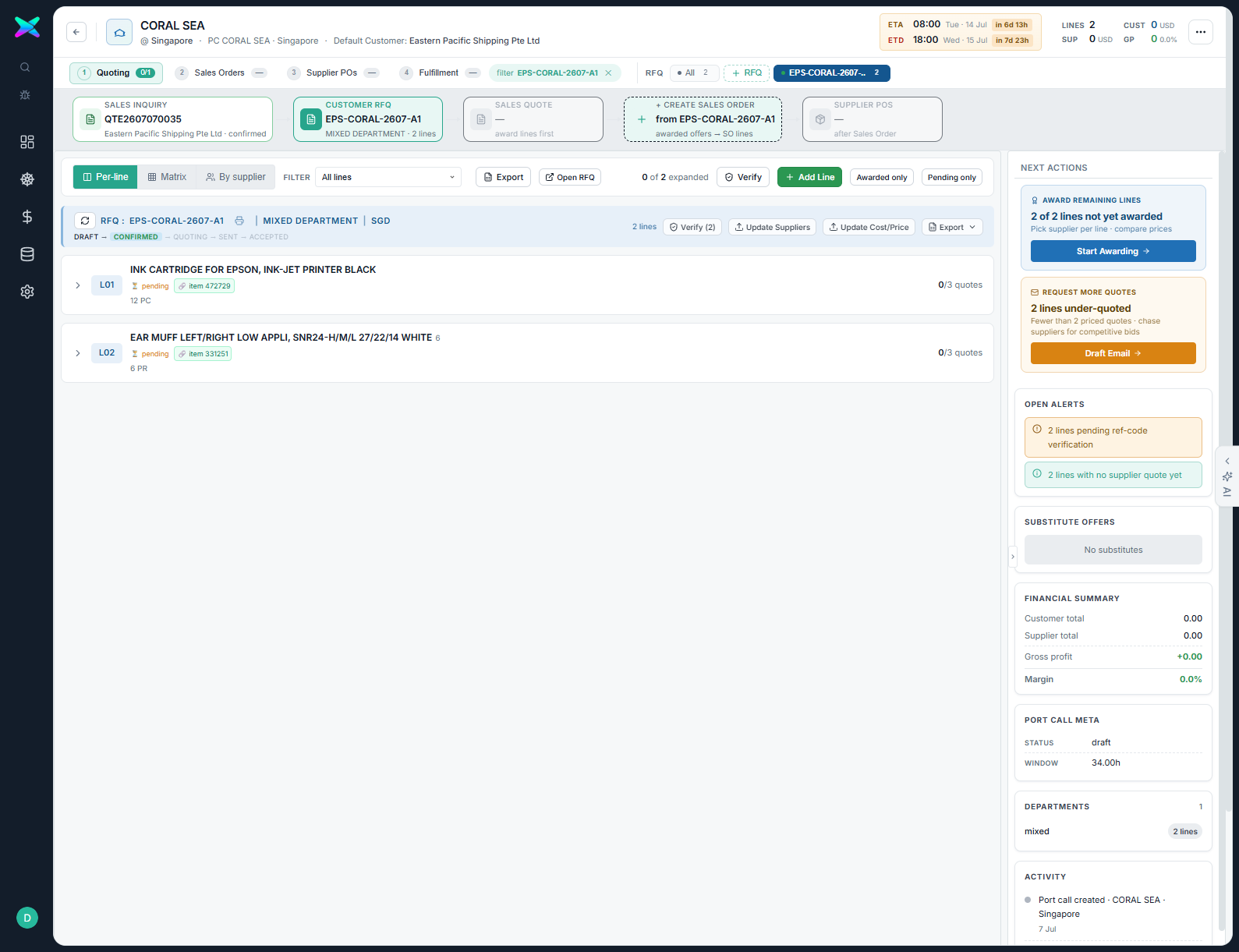
Click Confirm RFQ and confirm the dialog. This finalises the RFQ scope and moves it
draft → confirmed along the
DRAFT → CONFIRMED → QUOTING → SENT → ACCEPTED track, unlocking supplier sourcing.
2.4 Source suppliers per line live
Sourcing gets a price from suppliers for each line. Expand a line and click Add supplier — rank 1/2/3 to
attach a supplier; each attachment creates a draft purchase quote (PQ-…) for that line. In real use
the supplier then returns a price (via the supplier portal, the Update Cost/Price spreadsheet, or manual entry);
here we source L01 from Acme Marine and L02 from Blue Ocean Supplies.
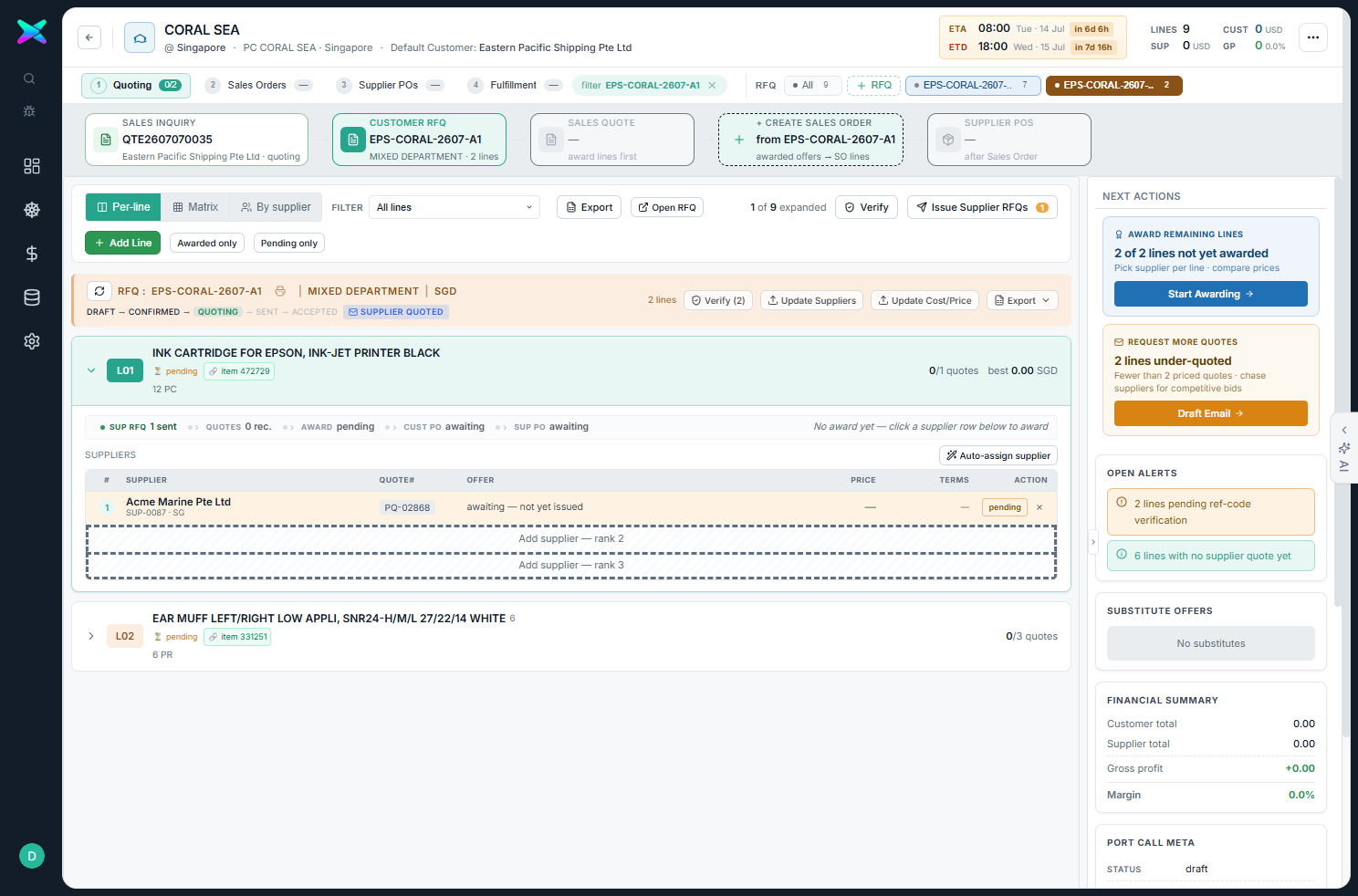
- Per-line / Matrix / By supplier views re-shape the same data — line-centric, a line×supplier price matrix, or grouped by supplier.
- Update Suppliers and Update Cost/Price bulk-apply supplier picks / prices from a spreadsheet (an RFQ export with the
VENDOR/COST/PRICEcolumns filled — see 2b). Lines must be Verified first.
2.5 Award the lowest offer per line live
Once priced, each line's supplier slot shows its offer; awarding freezes that supplier's price as the line
cost, and the markup % derives the customer sell price and gross
profit. With both lines awarded, the RFQ header shows SUPPLIER QUOTED and the right rail flips to
Create Sales Orders.
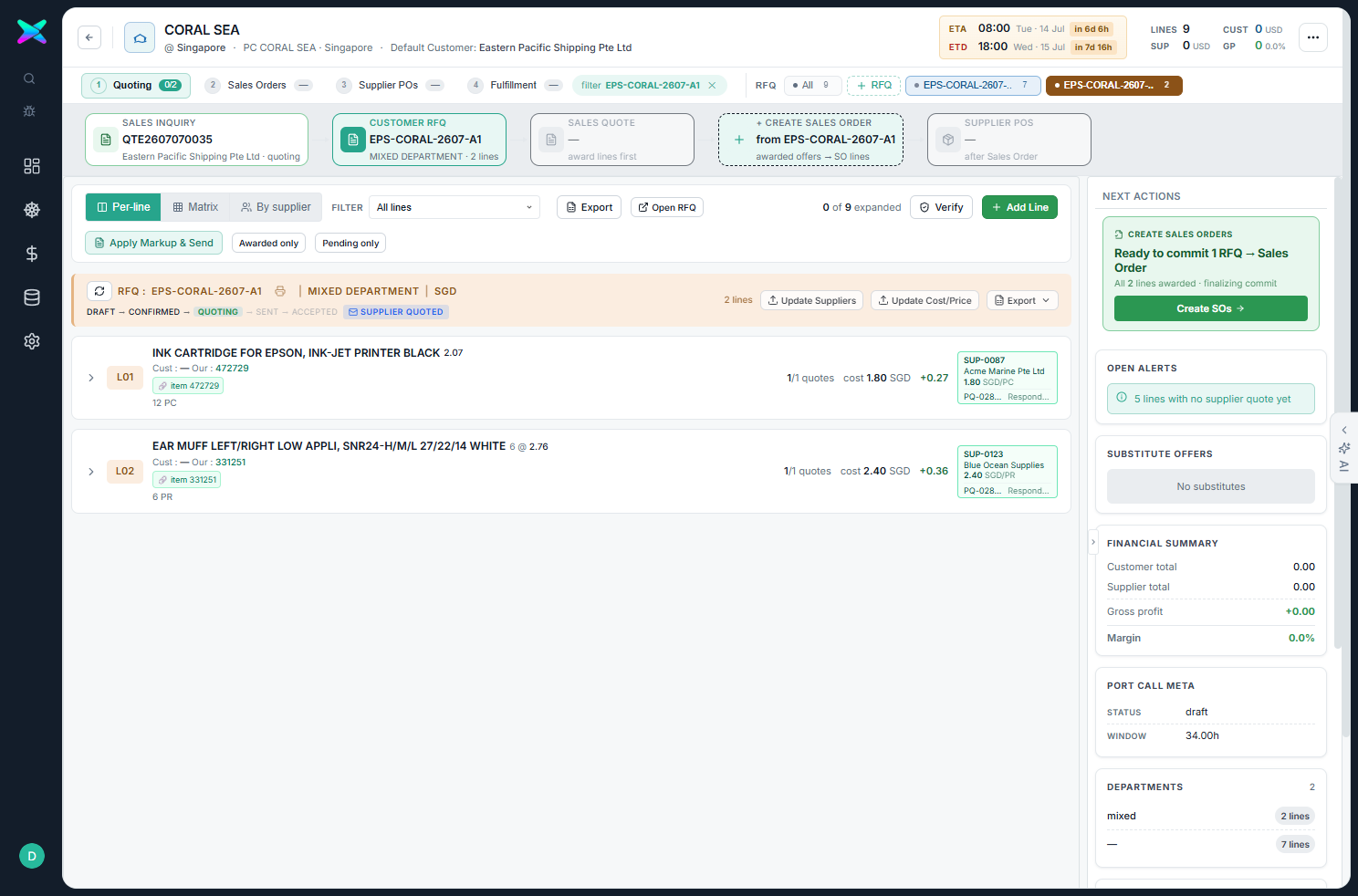
purchase_quote_line is stamped onto the RFQ line
(src_supplier_quote_line_id, cost_unit_price, cost_source = awarded_pq). Losing
offers stay on the board as ranked alternatives — nothing is auto-rejected.
2.6 Apply markup & generate the Sales Quote live
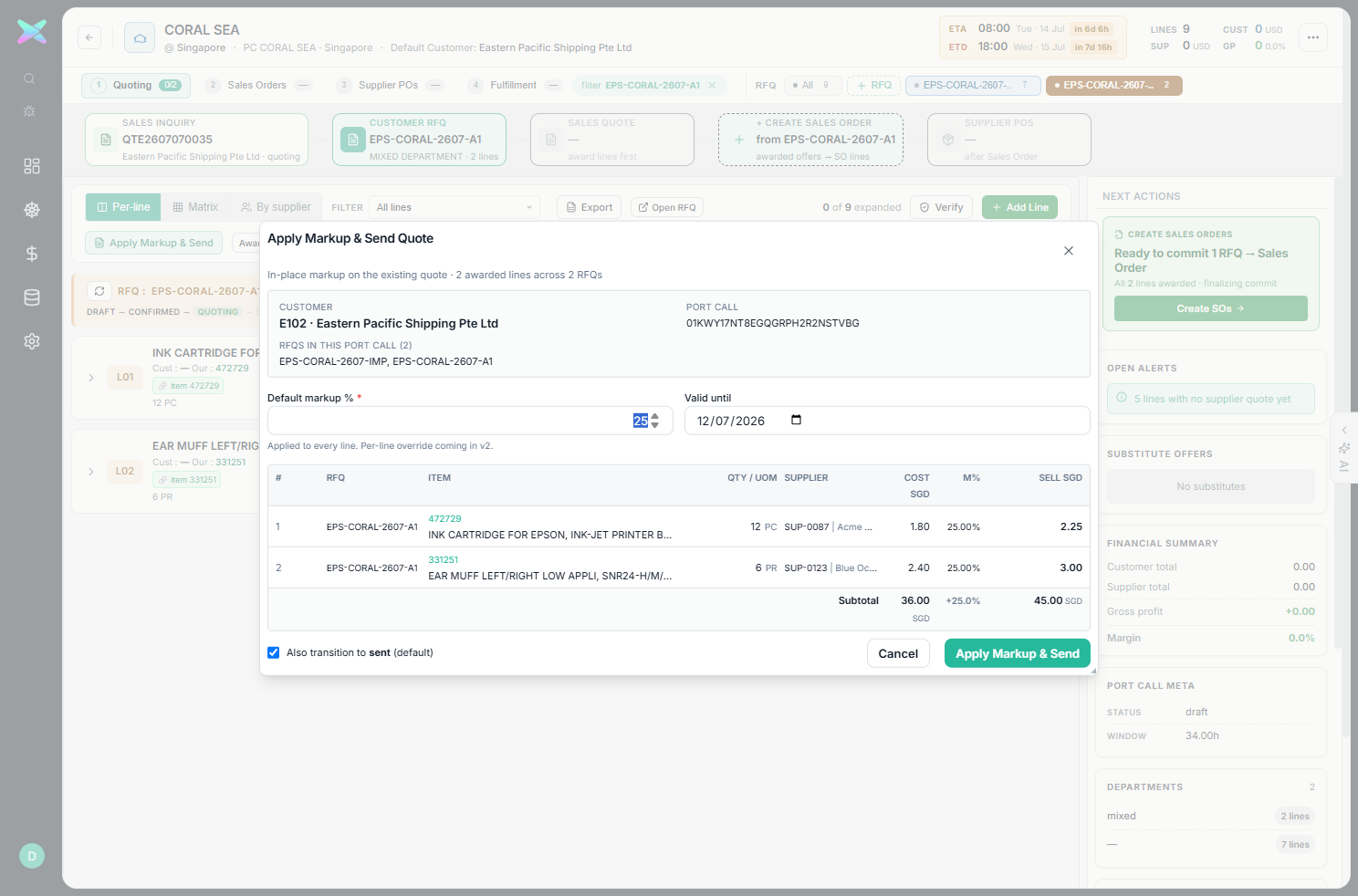
Apply Markup & Send prices the awarded lines at the configured markup and transitions the quote to sent — this is the customer-facing Sales Quote. After the customer accepts, the quote is ready to convert into a Sales Order (Stage 2).