Purchase RFQ (Supplier Quote) Purchase
A Purchase RFQ is how you ask a supplier for prices. You pick the items you need quoted, send the supplier a link (or key in their prices yourself), then award the lines you want to buy from them. It's the sourcing side of a job — where you shop around before raising a purchase order.
Where to find it: the Purchase RFQ screen in the menu.
What it is
One Purchase RFQ is a request to a single supplier plus the offer they send back. It lists the items you want quoted, and for each line the supplier gives a price, lead time, brand, pack and origin. You then look at every supplier's offer side by side and award each line to whoever gives the best deal. Most RFQs are started for you from the customer job in the Workbench, but you can also add one on its own.
The list
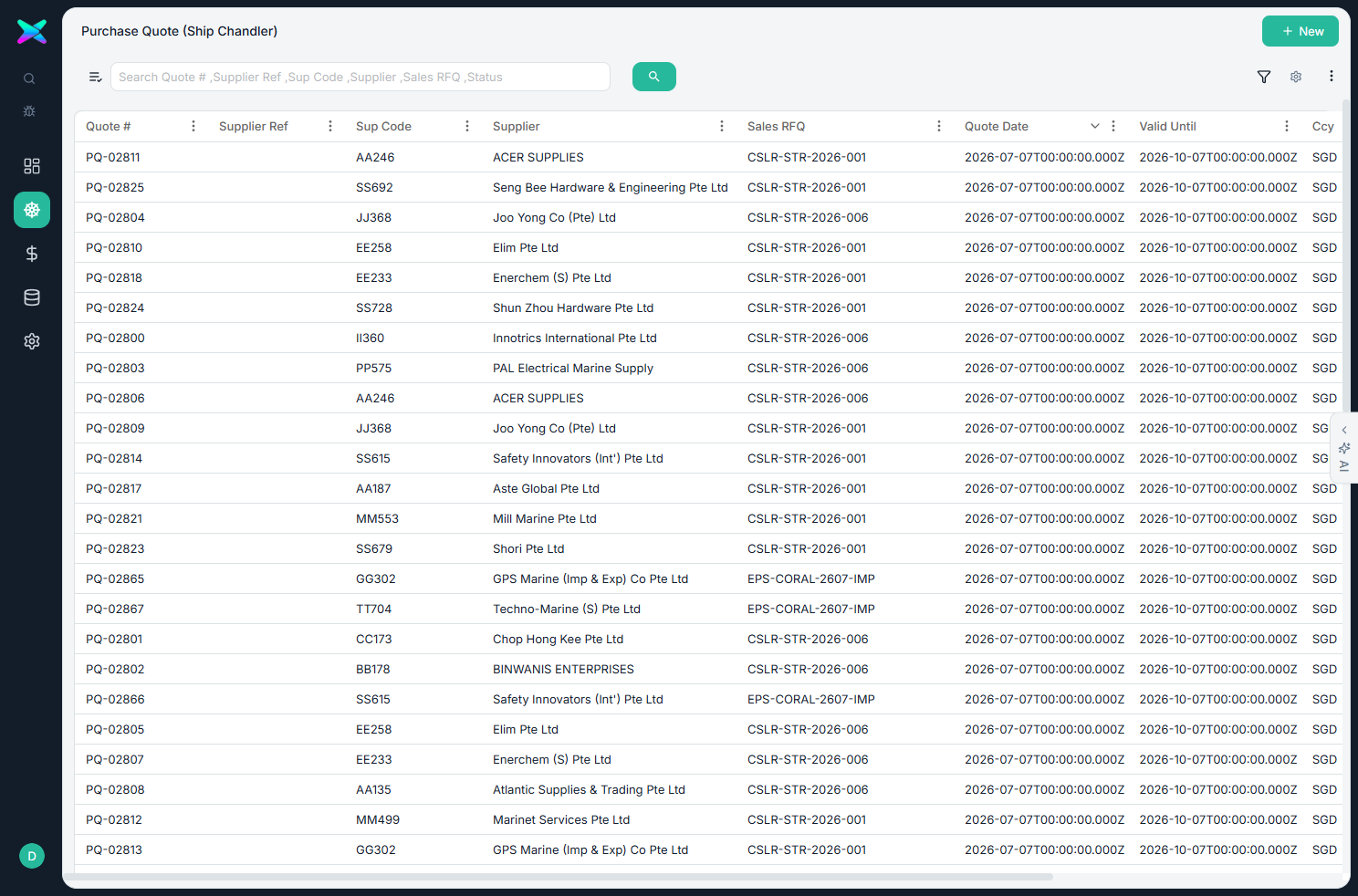
The Purchase RFQ list shows every supplier request, newest first. Search or filter to find one, then click a row to open it.
The form
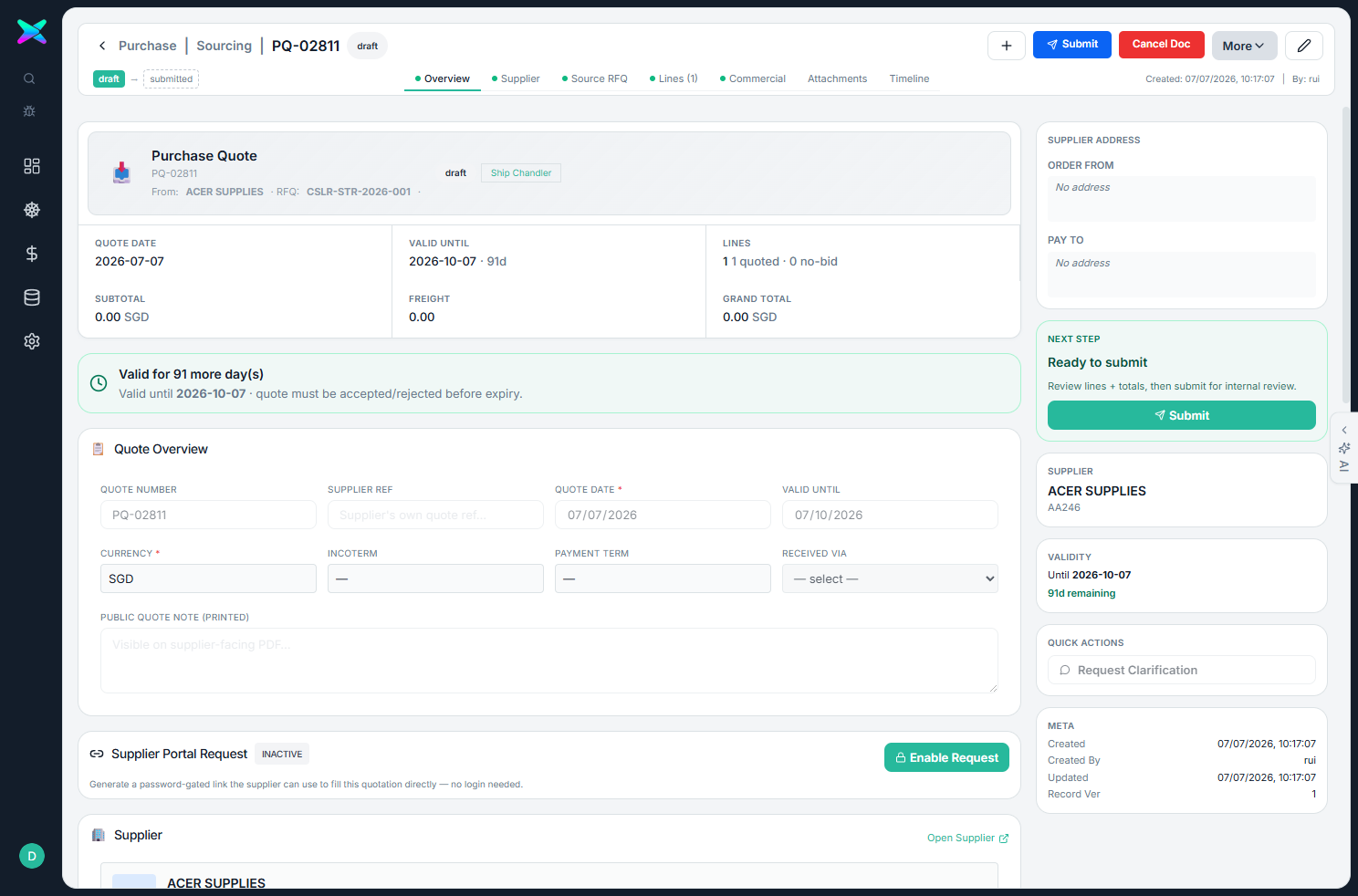
The form is organised into sections:
| Section | What you fill in |
|---|---|
| Overview | Quote number, the supplier's reference, quote date and valid-until date, currency, incoterm and payment term, and how the offer was received. |
| Source RFQ | The customer request this is sourcing for, so you can see what the customer asked. |
| Lines | Each item with the quantity requested and quoted, the line status (quoted, no-bid, or alternative offered), unit price, lead days, and brand / pack / origin. |
| Supplier address | The order-from and pay-to details for this supplier. |
What you can do
- Record the supplier's offer. Capture each line's price, lead time, brand, pack and origin — or let the supplier enter them (below).
- Let the supplier fill it in. Send a password-protected link and the supplier types their own prices online. You can turn the link on or off, set when it expires, copy the link and password, and email the invitation — to one or several recipients, and in bulk across many RFQs at once.
- Add lines from the customer request. Pull the still-unquoted items from the source customer RFQ into this supplier quote.
- Reject with a reason. Turn a supplier down and record why.
- Lock while under review. Once an RFQ leaves draft it's locked from edits; a supervisor can open a one-time override if a correction is needed.
How to use
- Most RFQs start from the customer job in the Workbench — a supplier slot is created for each item you want to source.
- Either send the supplier link so they fill in their own prices, or key the prices in yourself.
- Back in the Workbench, compare the offers and award the winning line to each supplier.
- The awarded lines feed the Purchase Order.
⬆ Where it comes from
⬇ What happens next
- Awarded lines become a Purchase Order, then goods are received (GRN) and billed (AP Bill).
What you can print
There's no printout here — the supplier works from the online form you send them, which shows your note to them on screen.