Port Call Workbench (PCWB) Workbench
The command centre for a single port call. Instead of hopping between a dozen list screens, the Workbench pulls every document for one visit — customer quotes, sales orders, supplier orders, goods receipts, deliveries, invoices and payments — onto one screen, organised into four stages, and points you to the next thing to do.
Where to find it: the Port Call Workbench, opened by clicking a port call.
What it is and why it helps
A single busy port call can carry dozens of documents across both the sales and the purchase sides. The Workbench gathers them all in one place — the vessel, port and dates at the top, then every quote, order, supplier order, delivery, invoice and payment beneath — so one person can run the whole voyage, from the first customer enquiry through to collecting payment, without leaving the screen. Everything you do here still saves into the same documents you'd see on their own screens; the Workbench just brings them together and walks you through them in order.
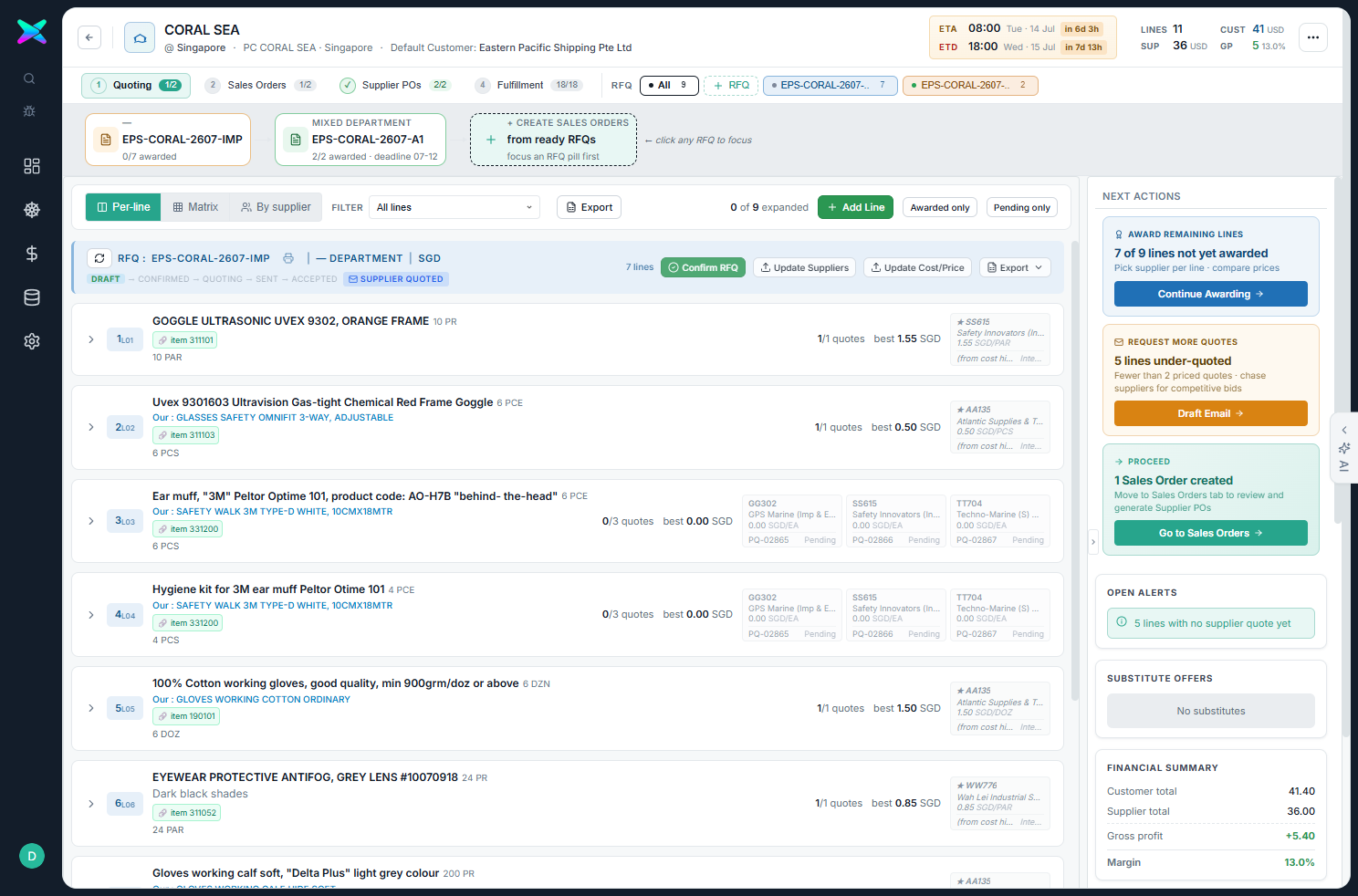
The four stages
Work flows left to right through four stage tabs. You can jump between them at any time, and each tab shows a badge for how far along it is.
| Stage | What it shows | What you do |
|---|---|---|
| 1 · Quoting | The RFQ lines, which you can view line by line, as a matrix, or grouped by supplier. | Confirm the RFQ, import or add lines, verify items, send supplier requests, accept or reject offers, award the best offer per line, apply your markup and send the quote, and export the RFQ to Excel. |
| 2 · Sales Orders | Each sales order with its items, quantities, prices and costs, and its pick/pack/deliver progress. | Create a sales order from a file, approve and confirm orders, and generate the supplier purchase orders from an order. |
| 3 · Supplier POs | The supplier purchase orders, viewable per order, as a matrix, or by status. | Issue draft orders, put them on hold, record goods received, record supplier bills, and record supplier payments. |
| 4 · Fulfillment | One sales order at a time, shown by its pipeline, its steps, or by invoice. | Create the delivery order, record picking and packing, issue the invoice (for one order or a consolidated voyage invoice), and record the customer's payment. |
The document strip and Next Actions panel
- Document strip. A row of clickable chips across the top showing the pipeline — customer enquiry, quote, sales order, supplier orders, goods receipts, picking, delivery, invoice, payment. Click any chip to jump straight to that document. The strip changes to match the stage you're in.
- Next Actions panel. On the right, the Workbench suggests the most useful next steps as cards — for example Award remaining lines or Request more quotes while quoting, Generate supplier orders or Issue orders on the sales-order side, and Create delivery, Consolidated voyage invoice or Chase payment during fulfilment.
What you can do
- Create or import an RFQ. Start a new request by typing lines in, opening the full form, or importing from a file (the app reads the file, you review, then it creates the lines).
- Add lines and verify items. Add items from the catalogue or from a file, then verify them so each line is matched to the right product — with a prompt to help you choose when a match is unclear.
- Get supplier prices. Line up suppliers per item, send them requests, and collect their offers back in.
- Award the best offer. Compare the ranked supplier offers on each line and award the one you want.
- Apply markup and send. Add your margin on top of the awarded cost to set the selling price, then send the quote to the customer.
- Export the RFQ to Excel. Several ready-made layouts — customer-facing versions and supplier/cost versions — from a top-bar picker or a per-RFQ menu.
- Update from an edited Excel. Send the export out, let someone fill in supplier prices, then use Update Suppliers from XLS / Update Cost & Price from XLS to pull those changes back in — the spreadsheet is treated as the source of truth.
- Jump anywhere and see the history. A quick-search shortcut (Ctrl+K) finds anything in the port call, and Timeline / Audit Trail views show what happened and when.
- Generate the paperwork downstream. Turn the awarded quote into a sales order, generate supplier orders from it (grouped per supplier), then record deliveries, invoices and payments — all without leaving the Workbench.
- See the money at a glance. A live summary shows the customer total, the supplier total, and your gross profit and margin, both in the right panel and in the header figures.
How to use, in short
- Open a port call (click its row on the Port Call list).
- Stage 1 — create or import an RFQ, verify the lines, get supplier prices and award, apply your markup, then create the sales order.
- Stage 2 — confirm the order and generate the supplier orders.
- Stage 3 — issue the supplier orders, then record goods received, bills and payments.
- Stage 4 — pick, pack, deliver, invoice, and collect payment.
What you can print and export
- Export the RFQ to Excel in several layouts.
- Print the Sales Order (with an optional cover page) and the Profoma Invoice; print Purchase Orders in the supplier-order stage.
- Print the Picking List, Packing List, Delivery Order and customer Invoice once they've been created in the fulfilment stage.