Packing Fulfil
The packing document is where picked goods are packed into pallets and packages ready for shipment. It drives the customs-style Packing List, including the shipping marks worked out from each pallet's size and weight.
Where to find it: the Packing screen in the menu.
What it is
After goods are picked, they need to be packed and labelled for delivery. The packing document records which items go into which pallet or package, the dimensions and weights, and the details that appear on the Packing List the customer and customs will see. Most packings are created from a completed Picking, but you can also start one from a Sales Order or from a file.
The list
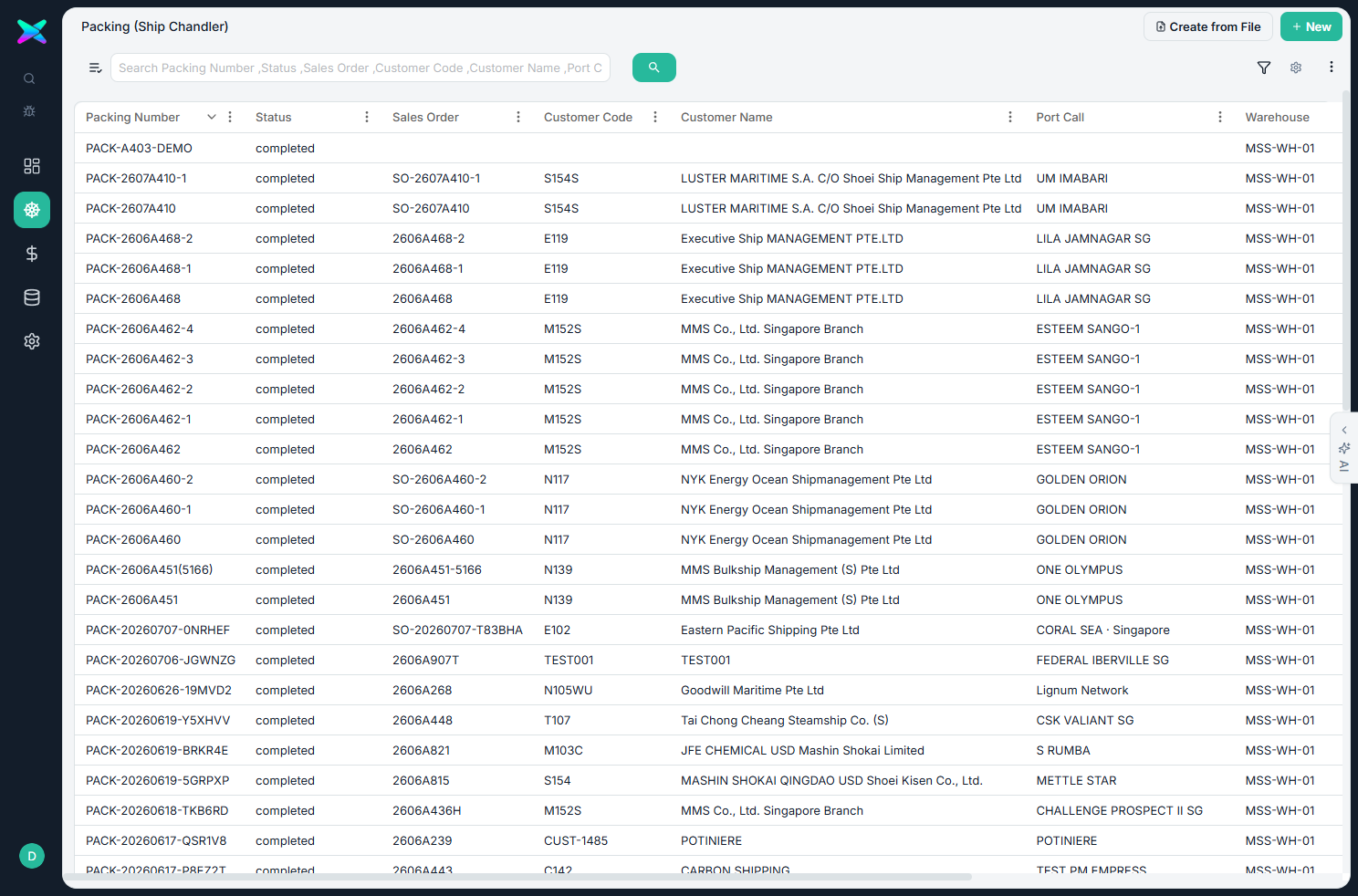
The Packing list shows every packing document. Search and filter to find one, then click a row to open it.
The form
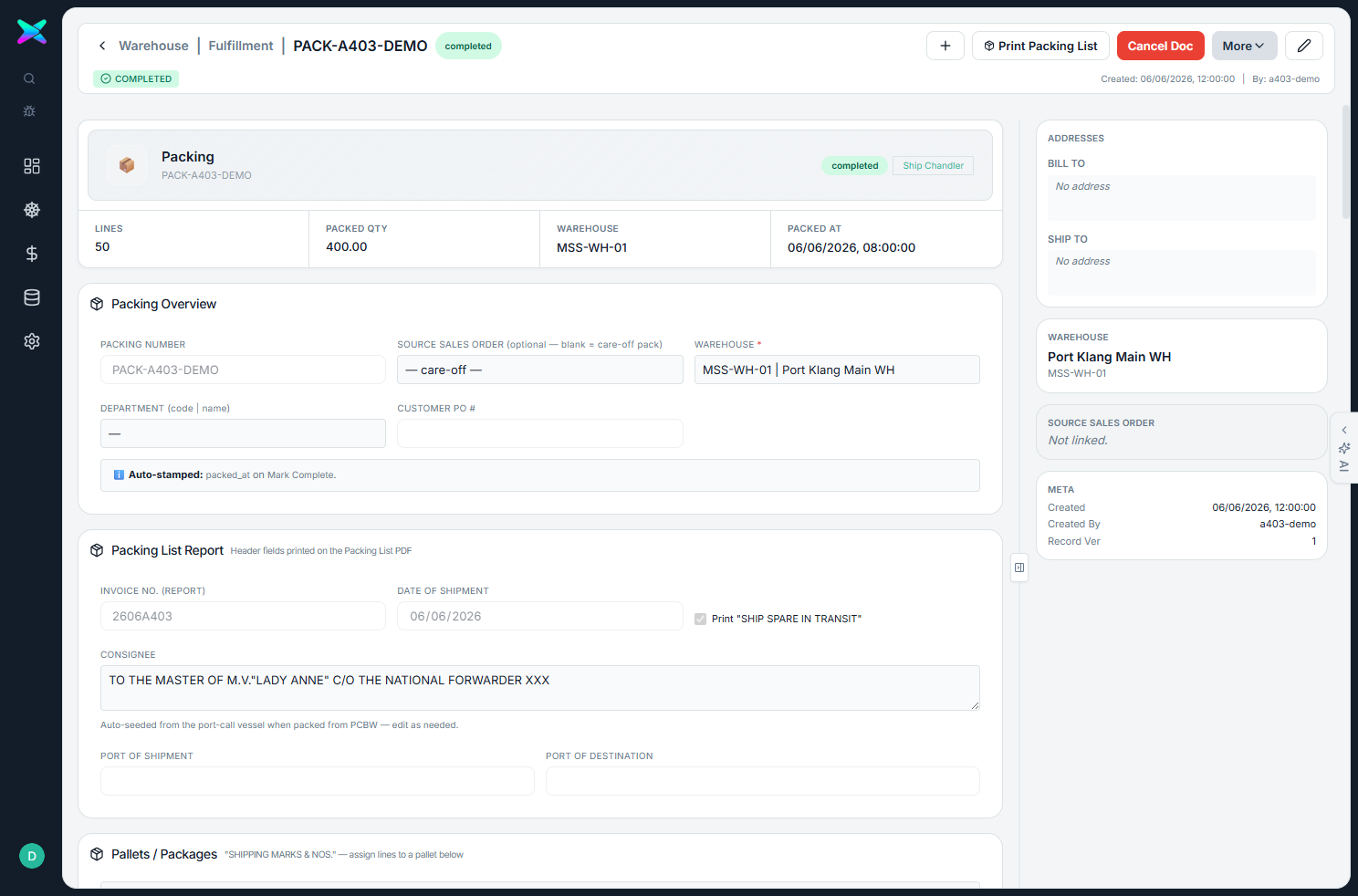
The form is organised into sections:
| Section | What you fill in |
|---|---|
| Overview | Packing number, the source Sales Order (optional for care-off packings), warehouse, department and customer PO number. |
| Packing List details | Invoice number, date of shipment, the "SHIP SPARE IN TRANSIT" declaration, the consignee (filled in for you from the vessel on the port call), and the ports of shipment and destination. |
| Pallets / Packages | Each pallet or package — its code, length × width × height, weight, and which lines it holds. A live preview shows the shipping marks as you go. |
| Lines | Each item — the picked quantity, the packed quantity, the line's status, and which pallet it's on with its weight. |
What you can do
- Track packing progress. A packing moves from pending to completed (Mark Complete, which stamps the packed date). You can cancel it, which returns the packed quantities.
- Automatic shipping marks. The dimensions and weights you enter for the pallets build the shipping-marks text and the SHIPPING MARKS block on the printed Packing List.
- Add and check items. Add lines by hand, import them from a file, and verify items against the catalogue. You can assign lines to pallets and pallets to lines either way round, and the warehouse is filled in for you.
How to use
- A packing is usually created from a completed Picking, or you can start one from a Sales Order or a file.
- Build your pallets and packages — enter the dimensions and weight, and assign the lines to each one.
- Click Mark Complete when everything is packed.
- Print the Packing List, then move on to the Delivery Order.
⬆ Where it comes from
- A completed Picking (or a Sales Order, or an uploaded file).
⬇ What happens next
- The packed goods move on to the Delivery Order.
What you can print
Packing List — the pallets feed its SHIPPING MARKS block and a footer showing the package count and total weight.
The form's top-bar prints just this packing list (the older single report stays on a Print (Legacy) card in the right sidebar). To print several together, tick them on the list and use its Print menu — see Batch Printing.