Batch Printing Tool
Print many documents into a single combined PDF, with a summary cover sheet on top. It's how you print all the sales orders, delivery orders, invoices or supplier orders for a port call at once, in the format you choose — and you can save the batch to re-open later.
Where to find it: this isn't its own menu screen — it's a feature on each document's list. Tick the rows you want and click Print.
What it is
A busy port call can produce many documents of each kind — a dozen supplier orders, several delivery orders, a stack of invoices. Opening and printing each one on its own is slow. Batch print takes a set of documents and renders them together — one PDF, one section per document, with a cover summary at the front — in whichever format you pick.
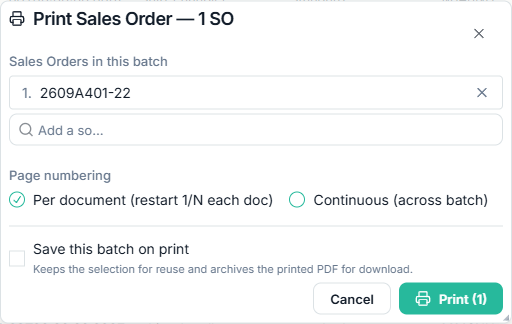
Which documents, which formats
Each list's Print button offers the formats that make sense for that document:
| List | Formats |
|---|---|
| Sales RFQ / Quote | Quotation |
| Sales Order | Sales Order · Sales Order (with cover page) · Profoma Invoice |
| Delivery Order | Delivery Order · DO Tax Voucher · Delivery Order (MOL Techno) · DO Tax Voucher (MOL Techno) |
| AR Invoice | Tax Invoice · Tax Voucher |
| Picking | Picking List |
| Packing | Packing List |
| Purchase Order | Purchase Order · PO Letter · Profoma Invoice |
When a list has only one format, clicking Print opens the dialog straight away; when it has several, you pick the format first.
Page numbering & cover sheet
- Per document — page numbers restart at 1 for each document in the batch.
- Continuous — one running page count across the whole batch.
When the batch has more than one document, a cover sheet is added at the front — a summary table listing each document's number, the customer or supplier, and (where the format carries a value) the total, with a grand total when everything shares one currency.
DO Tax Voucher — chemical treatment (per DO)
When you batch-print the Delivery Order Tax Voucher (standard or MOL Techno), each Delivery Order gets its own Ballast Ace Chemical Treatment toggle — not one switch for the whole batch. As you add a DO, the system checks that DO's line items and auto-ticks the toggle (shown in amber) when they match a chemical product (Neo Clor, Ballast Ace, TG Ballast Cleaner, TG Environmental Guard, and similar). You can override any row before printing. This way a single batch can mix chemical and non-chemical DOs, and each voucher prints the right footer — the chemical-treatment supply clause where it applies, the default asbestos statement everywhere else.
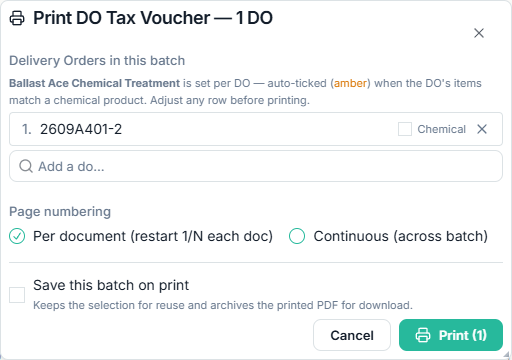
Saving a batch
- Load a saved batch. Batches you've saved before appear as chips, newest first; whoever created a batch (or an admin) can rename it, delete it, or download its saved PDF. Saved batches are kept per document type — a Sales Order batch won't show up in the Delivery Order dialog.
- Adjust the list. Add more documents with the search picker, or remove ones you don't want.
- Save on print. Tick the save option and give the batch a name — it keeps your selection and a downloadable copy of the PDF, so you can re-open it later without printing again.
How to use
- On any document list, tick the rows you want to print.
- Click Print and, if asked, choose a format.
- In the dialog, add or remove documents if needed, or load a saved batch.
- Pick the page numbering (per document or continuous). For a DO Tax Voucher, tick Ballast Ace Chemical Treatment if needed.
- Optionally tick Save this batch on print and name it.
- Click Print — one combined PDF opens, with the cover sheet followed by a section for each document.