Delivery Order Sales
The goods-dispatch document. Generated from a Sales Order, it records what was actually delivered to the vessel, tracks the transport, customs and proof of delivery, and sets the delivered quantity that the customer invoice then bills against.
Where to find it: the Delivery Order screen in the menu.
What it is
A Delivery Order is the note that goes with the goods to the ship. It lists the items and quantities being delivered, captures how they get there and the proof they arrived, and feeds the delivered quantity back to the Sales Order — which is what the invoice can then bill for.
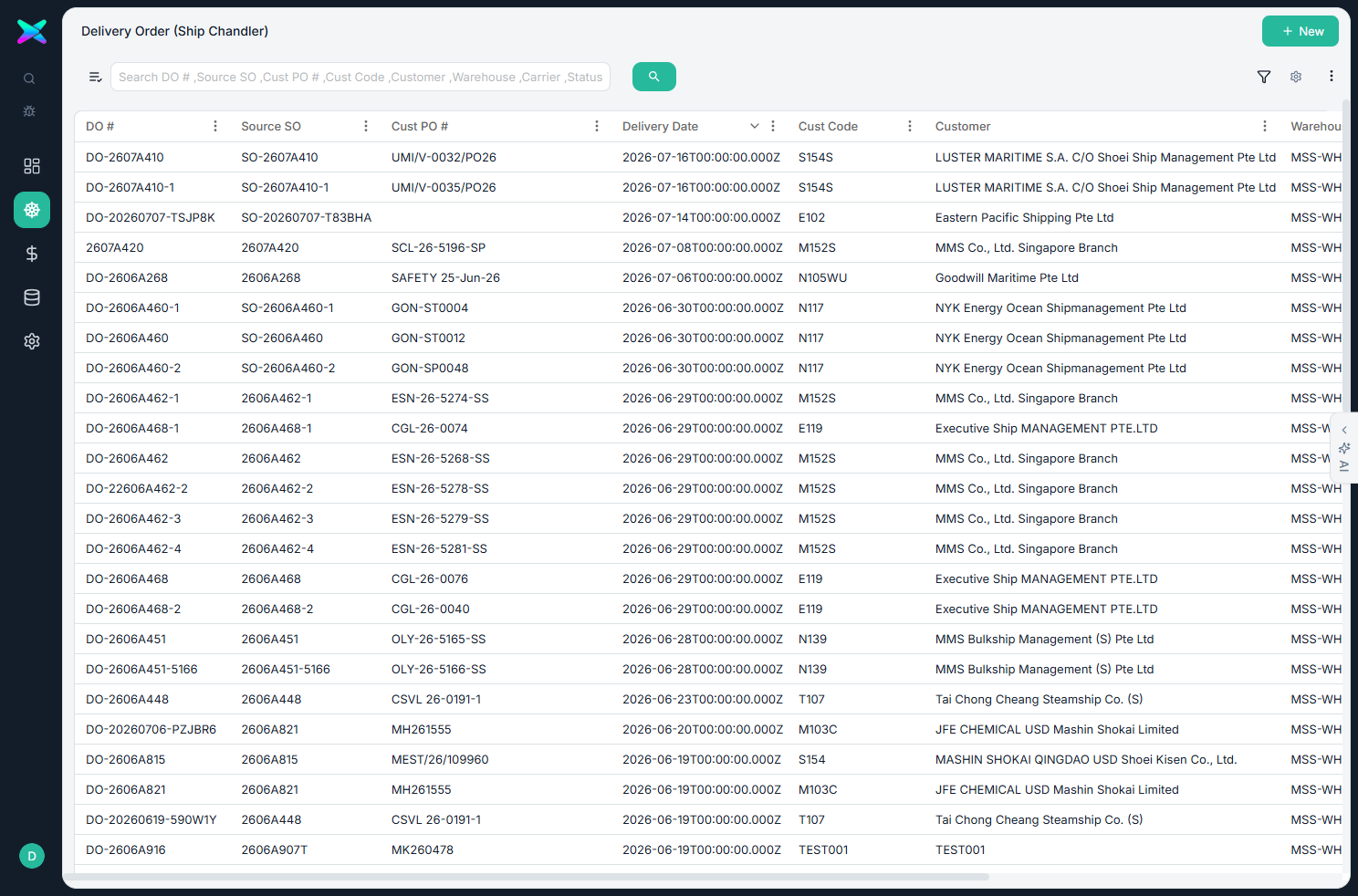
The list
The list shows every delivery. Use + New to start one, though deliveries are usually generated from a Sales Order.
The form
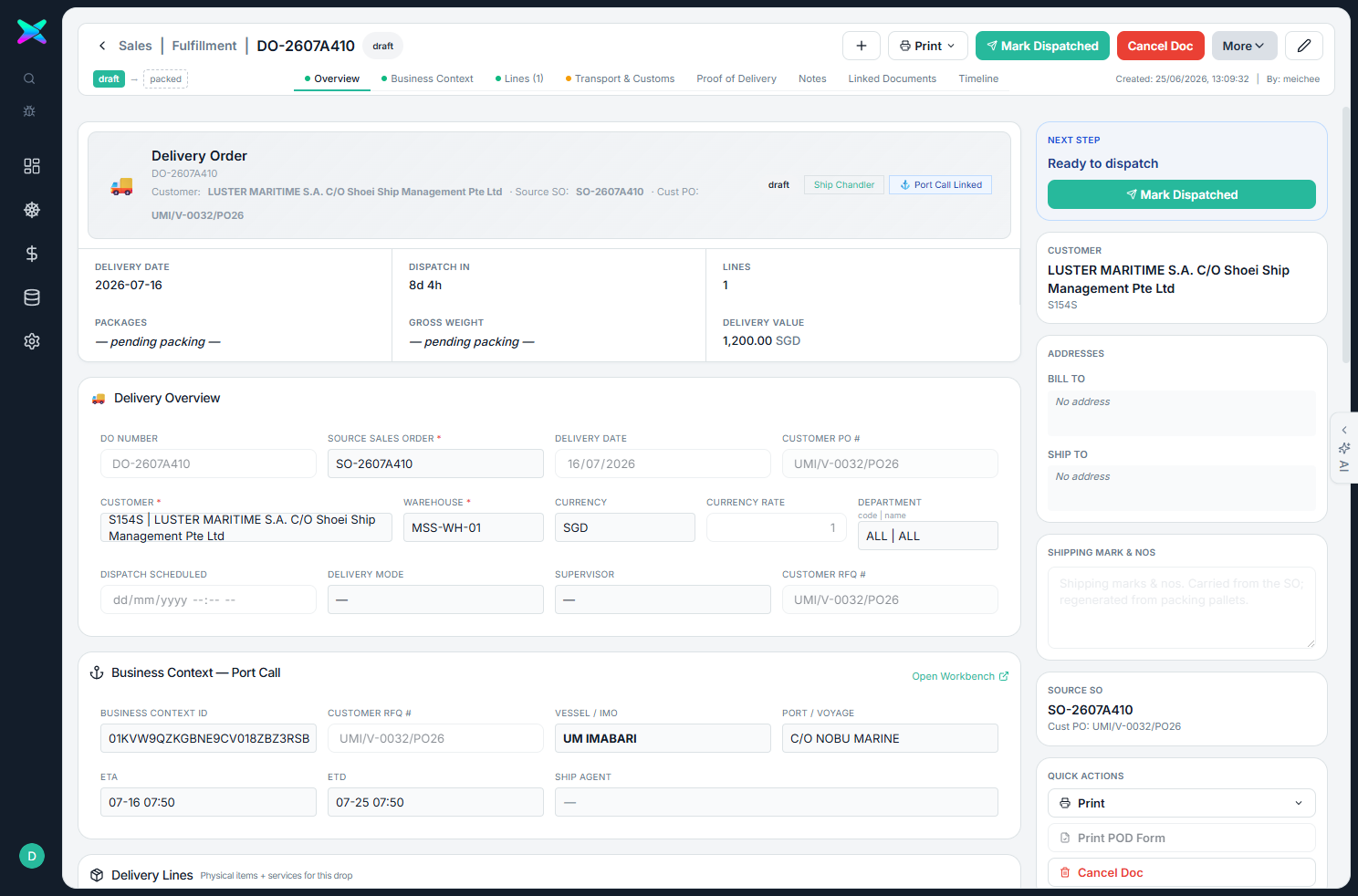
The form is organised into tabbed sections:
| Section | What you fill in |
|---|---|
| Overview | The source Sales Order, customer, warehouse, currency, department and employee. |
| Business context — Port Call | The vessel, port and dates for the visit. |
| Lines | Each item, its unit and quantity, and any batch or serial numbers. |
| Transport & Customs · Proof of Delivery | How the goods were carried, customs details, and the delivery confirmation. |
| Bill / Ship address | The frozen bill-to and ship-to addresses. |
What you can do
- Advance the delivery. It moves draft → packed → dispatched → delivered.
- Delivered quantity feeds back. Marking a delivery reduces the Sales Order's outstanding quantity; cancelling a delivered one puts it back.
- Editable document number, and an optional chemical-safety remark on the printout.
How to use
- Generate it from a confirmed Sales Order (Create Delivery Order on the order or in the Workbench).
- Confirm the lines and transport, then Dispatch and Deliver.
- Print the delivery note or tax voucher; the delivered quantity now lets you raise the invoice.
⬆ Where it comes from
- A Sales Order — generated from the order or from the Workbench, and after picking and packing.
⬇ What happens next
- An AR Invoice — the delivered quantity is what gets billed.
What you can print
- Delivery Order — the dispatch document (also in a MOL Techno co-branded version).
- Delivery Tax Voucher — with an optional chemical-safety remark (also in a MOL Techno version).
- Proof of Delivery form — a POD form to be signed on delivery.
The form's top-bar Print menu prints just this DO (the tax voucher asks about the chemical remark first); the older single-document reports stay available from a Print (Legacy) card in the right sidebar. To print several delivery orders together, tick them on the list and use its Print menu — the tax voucher then carries a per-DO Ballast Ace Chemical Treatment toggle (auto-ticked from each DO's own items). See Batch Printing.