Sales RFQ / Quote Sales
This is where you turn a customer's request into a priced quotation. You capture the items the customer asked for (in their own wording and codes), find and award a supplier for each line, build up the cost → markup → selling price, and — once the customer accepts — turn it into a Sales Order. It's the busiest, most detailed screen on the sales side, and the pricing heart of the whole job.
Where to find it: the Sales Quote (RFQ) screen in the menu.
What it is
A Sales Quote records one customer's request against a port call: what they want, how much you'll charge, and where the goods will come from. For every line you can note the customer's own description and item code, find the best supplier price, add your markup, and produce the price you quote back. When the customer says yes, the quote becomes a Sales Order in one step — carrying all the pricing and supplier choices with it.
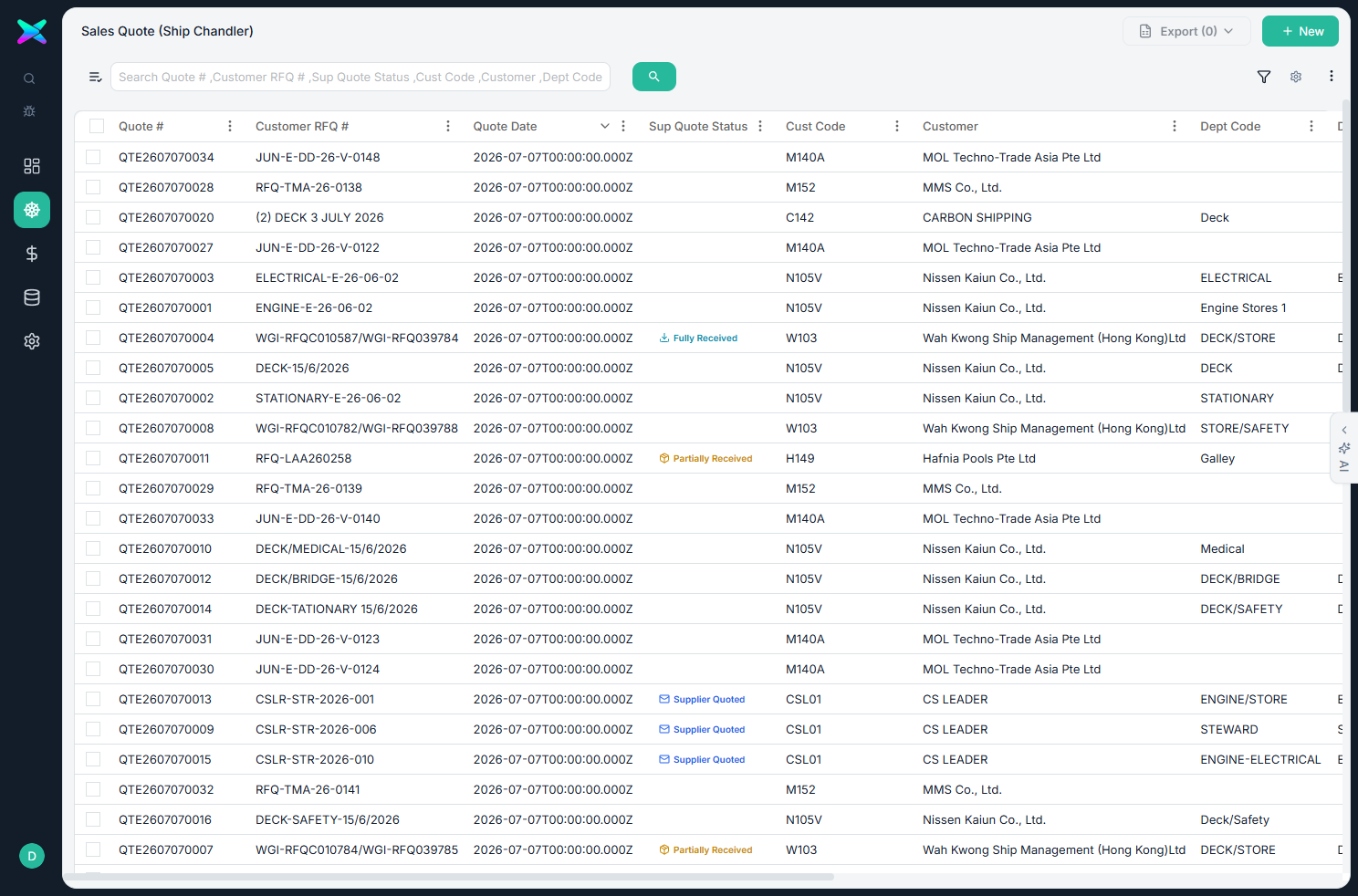
The list
The list shows every quote, with a status badge on each row that tells you how the supplier pricing is coming along (for example, requests sent out versus offers received back). An Export button offers several Excel layouts for sharing the quote.
The form
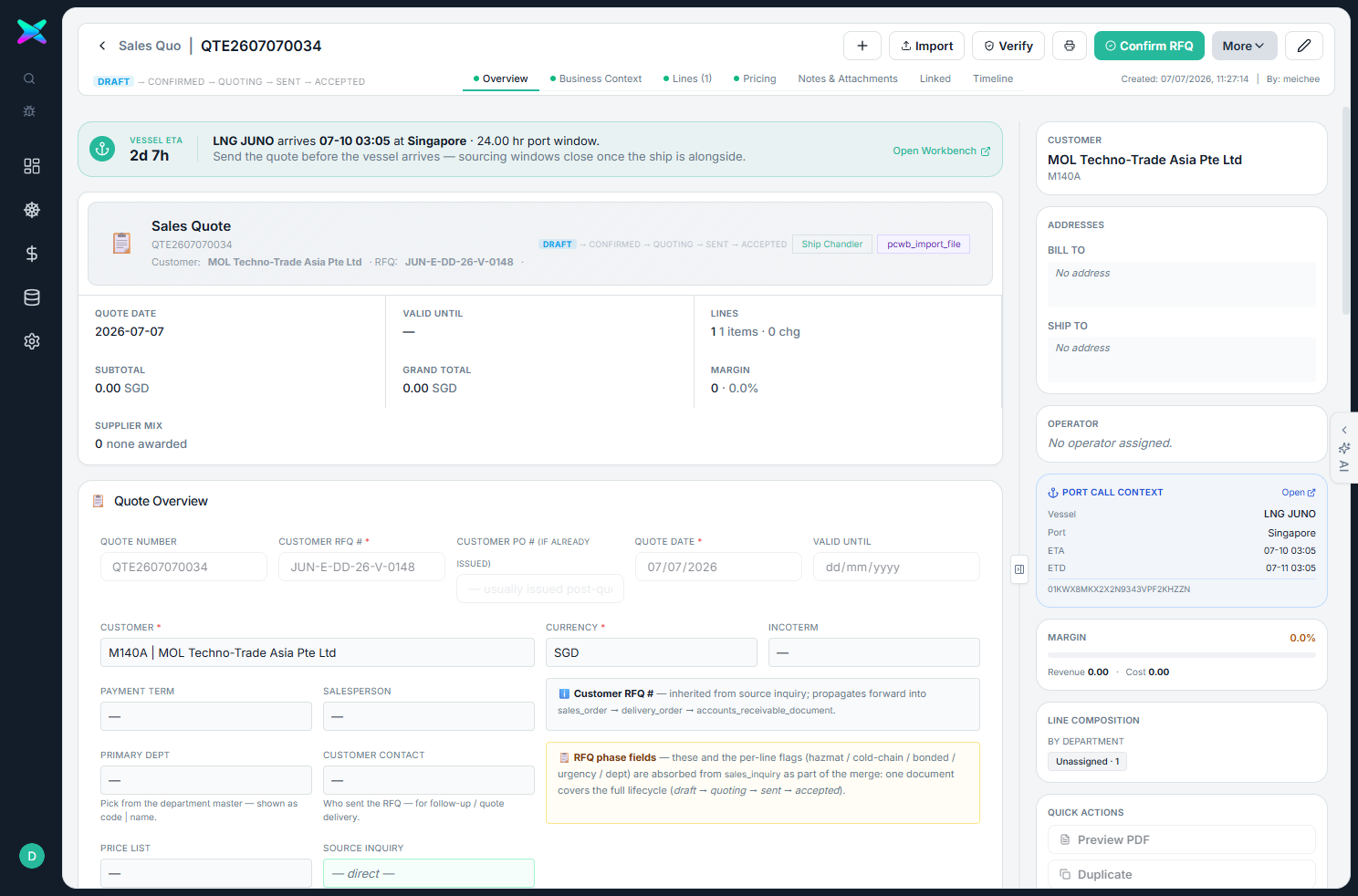
The form is organised into tabbed sections:
| Section | What you fill in |
|---|---|
| Overview | Customer, currency, incoterm, payment term, salesperson, department, contact, price list, the customer's RFQ number and PO number, and the bill-to / ship-to addresses. |
| Business context — Port Call | The vessel, port, arrival date and agent for this visit. |
| Lines | Each requested item — the type (item, charge, add-on or service), the item, unit and quantity; the cost → markup % → unit price; discount and tax; the customer's own wording (their item text, code, brand, quantity and remark); the supplier awarded for that line; and where the cost came from. |
| Pricing · Notes · Linked · Timeline | The margin breakdown and any low-margin approval, notes, related documents, and the change history. |
What you can do
- Find and award suppliers per line. Compare candidate suppliers for each item, send out supplier requests, and award the best offer — the winning cost and supplier are written straight onto the quote line.
- Watch offers roll in. The supplier-quote status moves along on its own (sent → partly → mostly → fully received) as suppliers reply.
- Match items to the catalogue. Check the customer's items against the catalogue by IMPA number; when a match is unclear you're asked to pick the right one.
- Automatic markup with an approval gate. Markup is applied for you, and if the margin comes out too thin the quote needs approval before it can go out.
- Move the quote along. Confirm it to start sourcing, send it to the customer, and record their Accept or Reject. If the margin is thin, it needs an Approve (or reject-approval) before it can go out.
- Export to Excel. Several ready layouts — a customer-facing quotation, two "show the differing IMPA" variants, and, once all supplier offers are in, a version in the supplier's currency and one converted to the customer's currency.
- Import from a spreadsheet. Bring in cost, price and supplier from an Excel file.
- Handy extras. Edit the document number, set the care-off flag and operator, and keep frozen bill-to / ship-to addresses on the document.
How to use
- Create the quote — by hand, from the Workbench, or from an uploaded file.
- Add the lines (from the catalogue or by import) and match them to the catalogue by IMPA.
- Find suppliers and award the best offer for each line.
- Apply the markup and send the quote to the customer.
- When the customer accepts, generate the Sales Order — everything carries over.
⬆ Where it comes from
- You create it yourself, start it from the Workbench, or build it from an uploaded file. (This is also where the old Sales Inquiry step now lives.)
⬇ What happens next
- Supplier requests go out to price the lines, and once the customer accepts, the quote becomes a Sales Order.
What you can print
- Quotation — the customer-facing quote.
- Excel exports — several layouts for sharing and comparison.
The form's top-bar prints just this quote (the older single report stays on a Print (Legacy) card in the right sidebar). To print several quotes together, tick them on the list and use its Print menu — see Batch Printing.