Supplier Quote Portal Purchase
A password-protected web page you send to a supplier so they can type in their prices against your requested items and submit their quote back to you — no login or account needed. It's the supplier's side of a Purchase RFQ.
Where to find it: you don't open it yourself — you send it from the Purchase RFQ screen, and the supplier opens it in their browser.
What it is
Rather than emailing a spreadsheet back and forth, you give the supplier a private link. They open it, enter a password, fill in their prices online, and submit. Their submission comes straight back into the system as a Supplier Submission you can compare and award.
How you send it (from the Purchase RFQ)
On the Purchase RFQ screen, in the Supplier Portal Request panel:
- Click Enable Request. Set how many days the link stays open (Expiry Days, default 6) and optionally tick Send invitation email with the supplier's address.
- The panel then shows the auto-generated Password and the Request Link, each with a copy button — plus a Send Email button to re-send the invite.
- A status badge tracks the request: Inactive → Active → Submitted (and Revise if you reopen it). Use Disable Request to revoke access at any time.
What the supplier sees & does
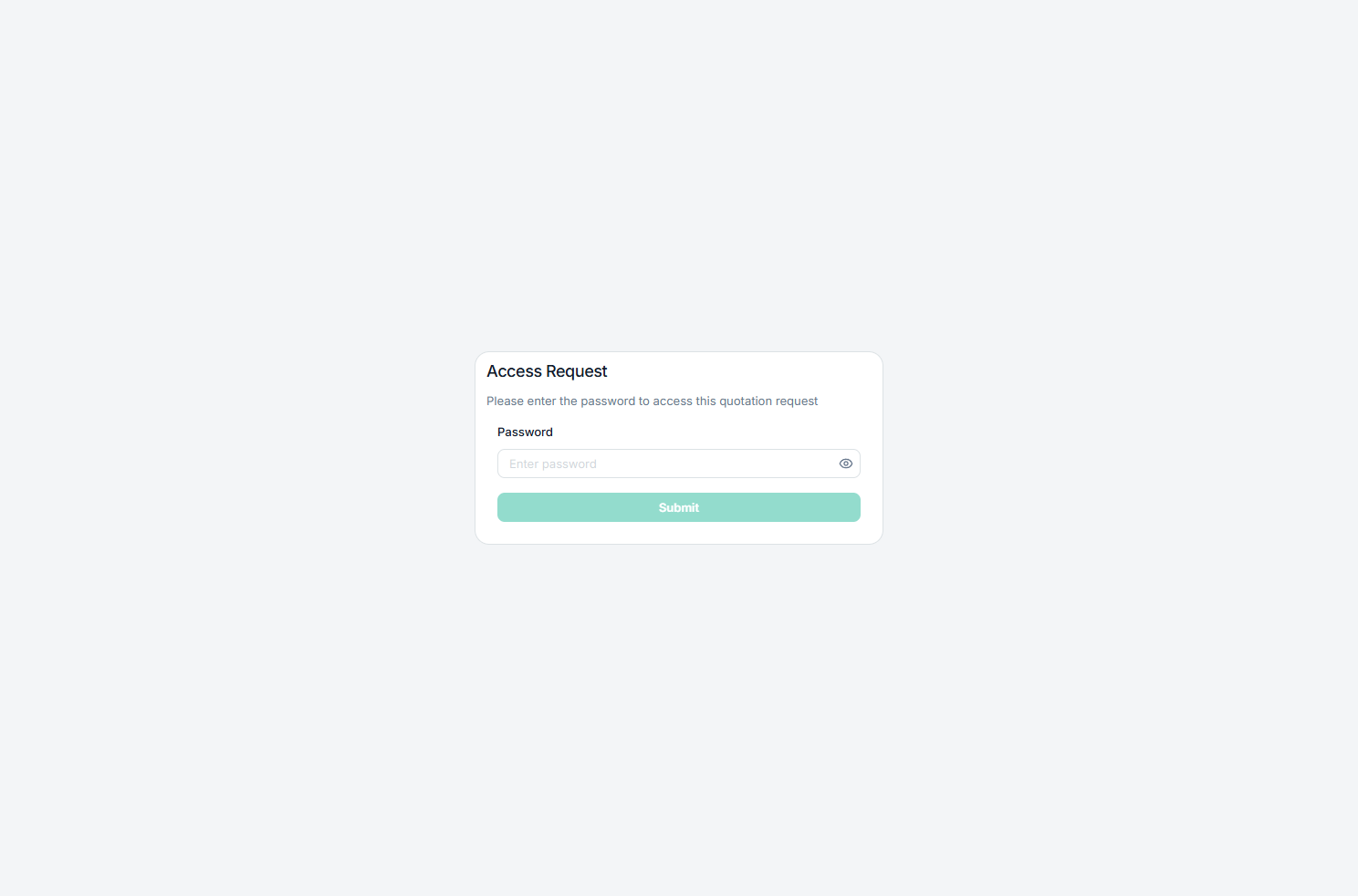
- Enter the password. The link opens an "Access Request" gate; the supplier types the password (with a show/hide eye) to get in.
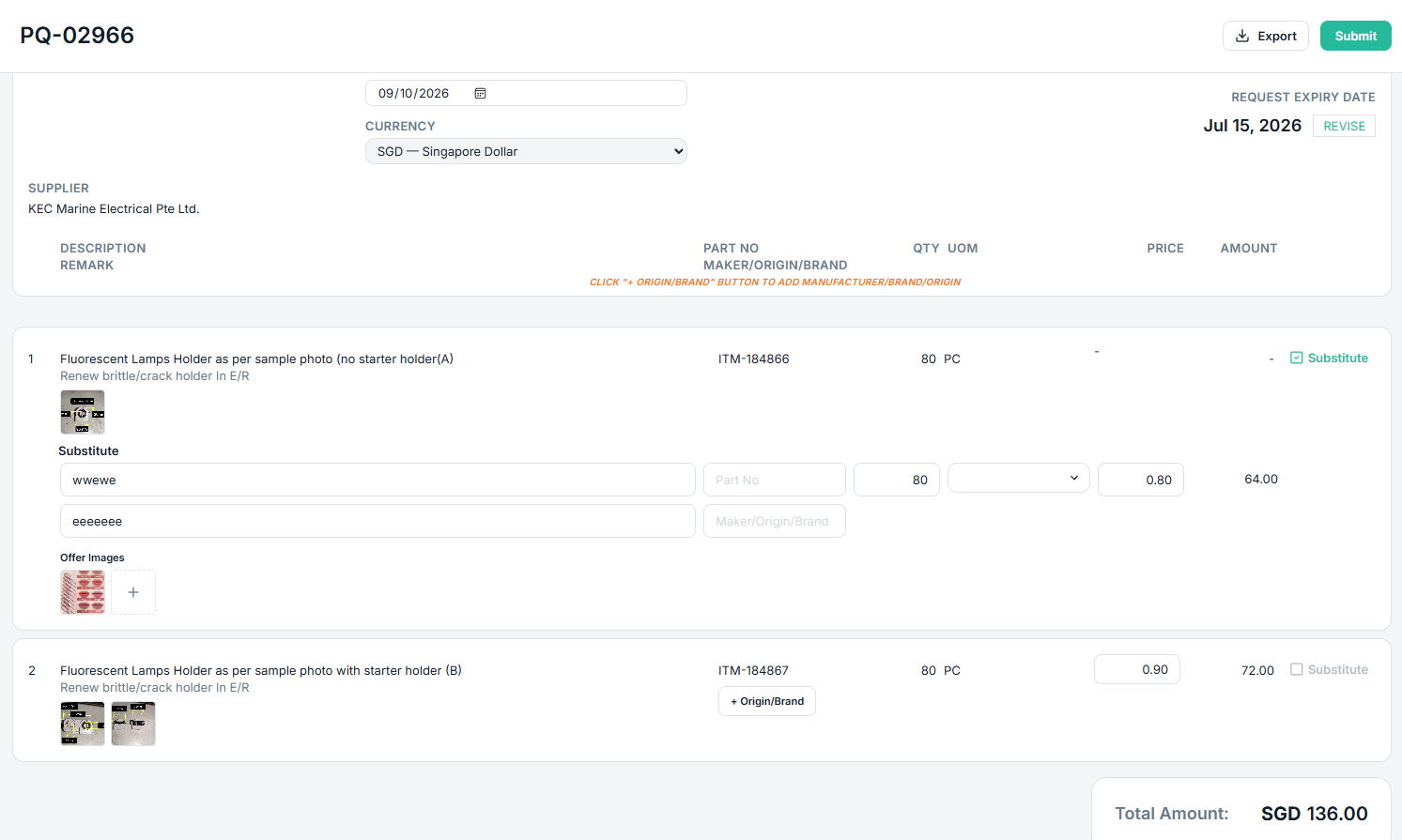
- Check the header. Quote number, reference, date, their name, and the request expiry date (an "Expired" badge shows if it's past). They set their Valid Until date and pick the currency their prices are in.
- Price each line. For every requested item (shown with the description, part number, brand, quantity and unit exactly as you wrote it) they type a unit price; line and grand totals add up live. Leaving a price blank simply means they're not bidding that line.
- Offer a substitute. To propose a different item, they tick Substitute on a line and fill in the alternative's description, part number, maker/brand, quantity, unit and price. This opens an Offer Images section where the supplier can upload, view and delete photos of what they're actually offering (any reference photos you attached to the requested item also show on the line).
- Add remarks per line as needed, then click Submit and confirm.
- Revise if needed. After submitting, a Revise button lets them reopen the form and re-submit — as long as the request is still open and hasn't expired or been disabled.
What you can do
- Send, re-send and revoke. Enable the link, email it, copy the link/password, and disable it when you're done.
- Watch the status. The badge tells you when the supplier has submitted.
- The supplier can also download their own quote as Excel from the portal while it's still open.
⬆ Where it comes from
- A Purchase RFQ — you enable the portal request and send the link.
⬇ What happens next
- The supplier's submit is captured as a Supplier Submission, which you compare and award in the Workbench.
What you can print
No printout — it's an online form. (The supplier can download their own quote as an Excel file.)