Search · Filter · Sort
Finding records is the same everywhere in the app — in a list, or in a search picker inside a form. This page covers the quick search box, the filter builder, sorting, choosing columns, and exporting.
Quick search
Type in the search box at the top of a list to narrow it down. It looks across the record's key fields — the placeholder text tells you which (for example "Search Customer Code, Name, Display Name, Registration No"). It searches your whole set of records, not just the page you're on. Inside a search picker on a form, type your term and press Enter, then click the row you want.
The filter builder
Click the funnel icon to build precise conditions. A filter is one or more rules — each picks a field, a test, and a value — and you can combine them with and / or, or group them for more complex logic.
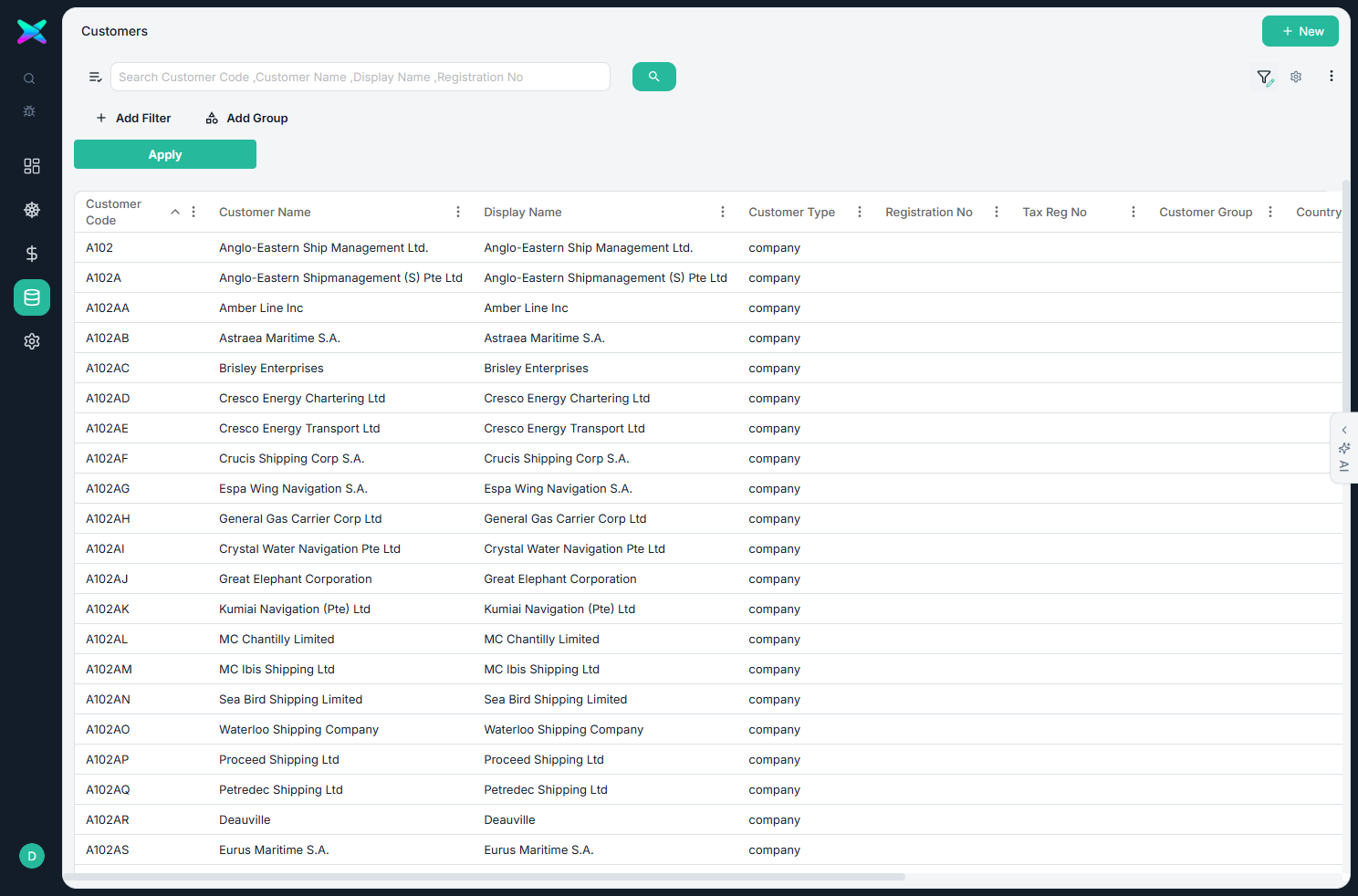
The funnel has three states
Each click on the funnel cycles it:
- Hidden — the filter panel is closed.
- Quick change — the panel shows your current filter but only lets you change the values (handy for tweaking, e.g. changing a date); changes apply instantly.
- Full edit (a pencil appears on the funnel) — add, remove and rearrange rules; press Apply to run them.
The funnel is highlighted whenever a filter is switched on.
The tests you can use
Text
- Equals / Does not equal
- Contains / Does not contain
Numbers
- Greater than / Less than (or equal)
- Between two values
Lists & blanks
- Is one of / Is not one of a list
- Is empty / Is not empty
Dates
- This month / Last month
- This year / Last year
- In the last N days (e.g. last 7 days)
Sorting
Click a column heading to sort by it; click again to flip between ascending and descending. Each list opens on a sensible default sort — usually newest first.
Choosing columns
The gear icon lets you choose which columns appear. What you see is consistent for everyone on your company's setup.
Exporting
Export exactly what you're looking at — with your search and filters applied:
- Excel, CSV or a data file.
- Pick the columns to include.
- Only the filtered rows are exported, not the whole table.
- Large exports are handled in the background with a progress indicator.