Supplier Master
The Supplier is who you buy from. Each record holds the vendor's addresses, contacts, payment terms and a blacklist control, and its default order-from and pay-to addresses flow onto every purchase document you raise for them.
Where to find it: the Supplier screen in the menu.
What it is
A supplier record is the vendor account you order goods from and pay. It keeps their details in one place — who they are, their addresses (sites), their people (contacts), and how you pay them — so purchase requests, orders and bills fill in the right details automatically.
The list
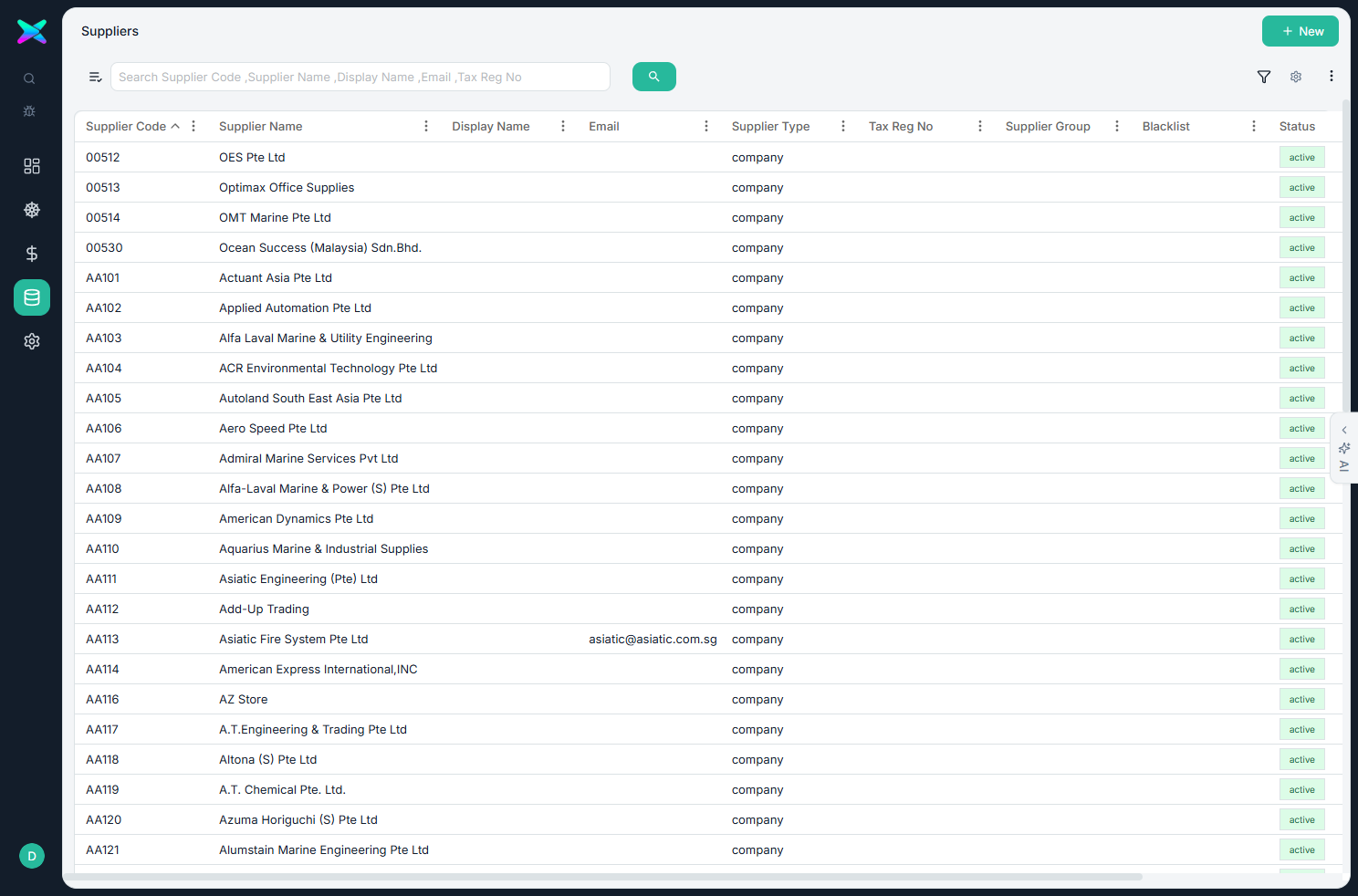
The Supplier list shows every vendor. Each row carries a status badge, and a red Blacklisted badge appears when a supplier has been blacklisted. Search or filter to find one, click a row to open it, or use + New to add one.
The form
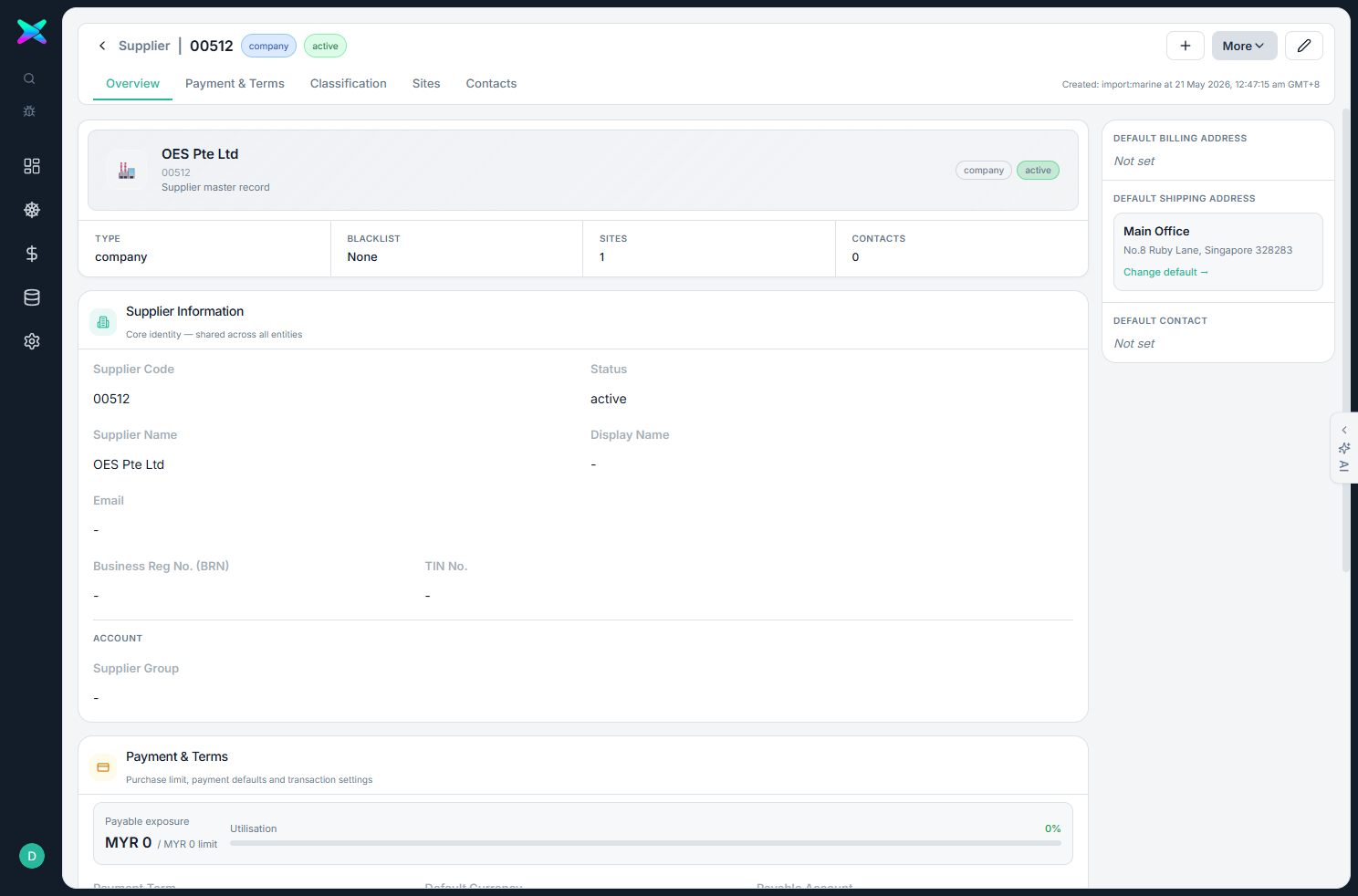
The form is organised into tabbed sections:
| Section | What you fill in |
|---|---|
| Supplier Information | Code, name, email, registration and account details. |
| Payment & Terms | Payment term, currency and the default remit-to details. |
| Classification & Assignment | Group, tags and blacklist status (none, or blacklisted with a reason). |
| Sites | Addresses — ordering, remit-to, or both — with one marked as the default. |
| Contacts | The people at this supplier, with a default contact who receives quote invitations. |
What you can do
- Set default addresses. Mark a default order-from and pay-to address, and they pre-fill on purchase orders, goods receipts and bills — and are frozen onto each one so later changes don't rewrite old paperwork.
- Blacklist a supplier. Blacklisting asks for a reason and flags the supplier everywhere they appear.
- Store an email that's used as the default recipient for supplier-quote invitations.
- Keep sites and contacts as full lists, each with its own default.
How to use
- Click + New and enter the code, name and registration.
- Set the payment term and currency, then add the ordering and remit-to Sites and the Contacts.
- Save — the supplier can now be selected on Purchase RFQs and Purchase Orders.
⬆ Where it comes from
- You set suppliers up yourself. Their details can also be enriched through the supplier-quote portal flows.
⬇ What happens next
- The supplier is used on Purchase RFQs, Purchase Orders, goods receipts, AP bills, supplier payments and purchase returns, plus product supplier codes and cost history.
What you can print
Nothing is printed from this screen. The supplier's order-from and pay-to address appears on the purchase documents you raise for them, but the master record itself has no printout.